Bhuvan LULC 50K in QGIS for Urban Fringe Screening
A practical guide to using NRSC Bhuvan Land Use Land Cover 50K web services in QGIS for screening urban expansion around Indian city edges.
Why Bhuvan LULC 50K is useful for urban fringe studies
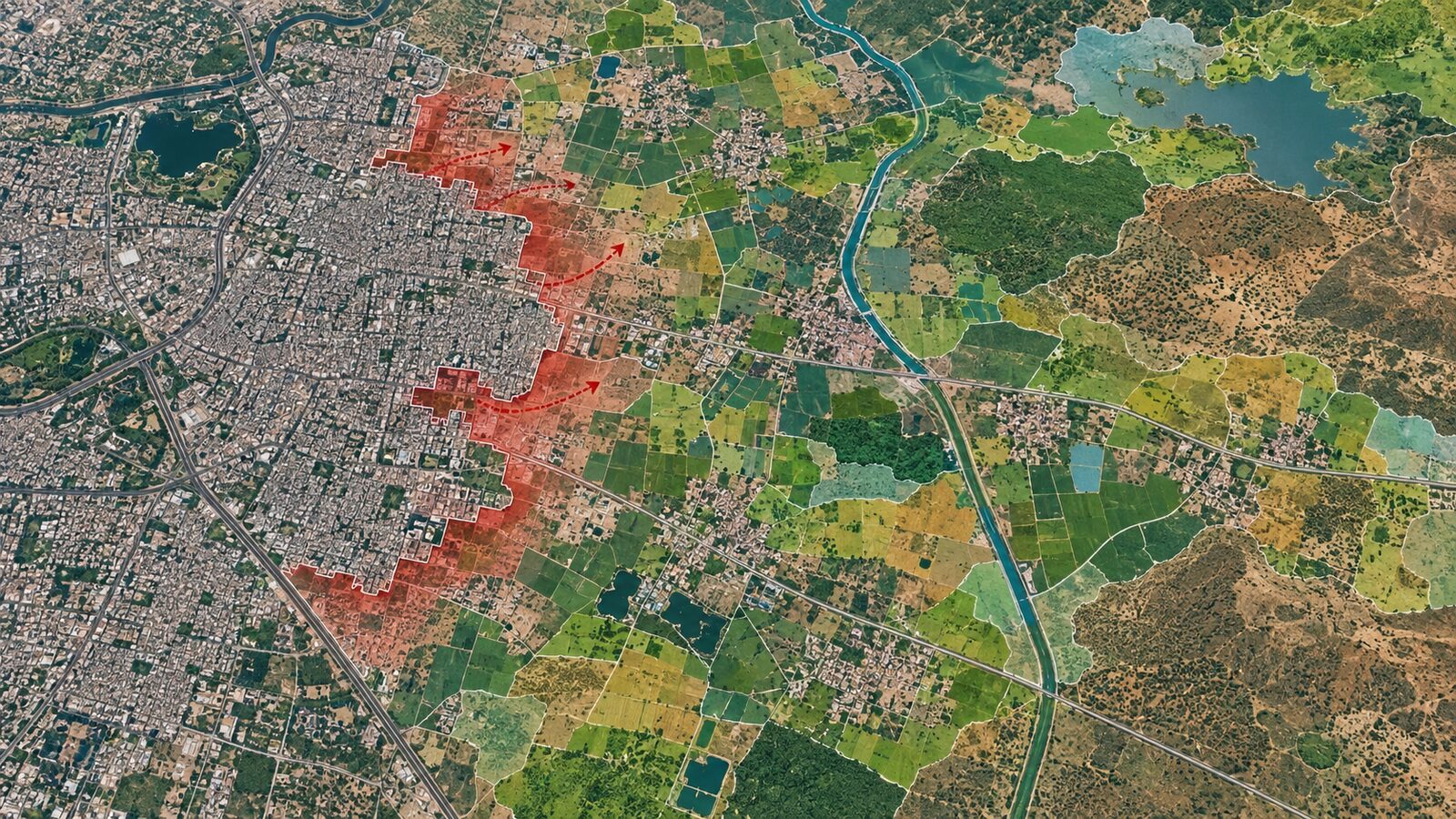
For Indian GIS students and early-career analysts, Bhuvan is often treated as a map portal to browse, not as a working data service. That is a missed opportunity. NRSC's Land Use Land Cover 50K layer can be brought into QGIS through OGC web services and used as a screening layer for peri-urban change, especially where you need a national, consistent reference before doing your own classification.
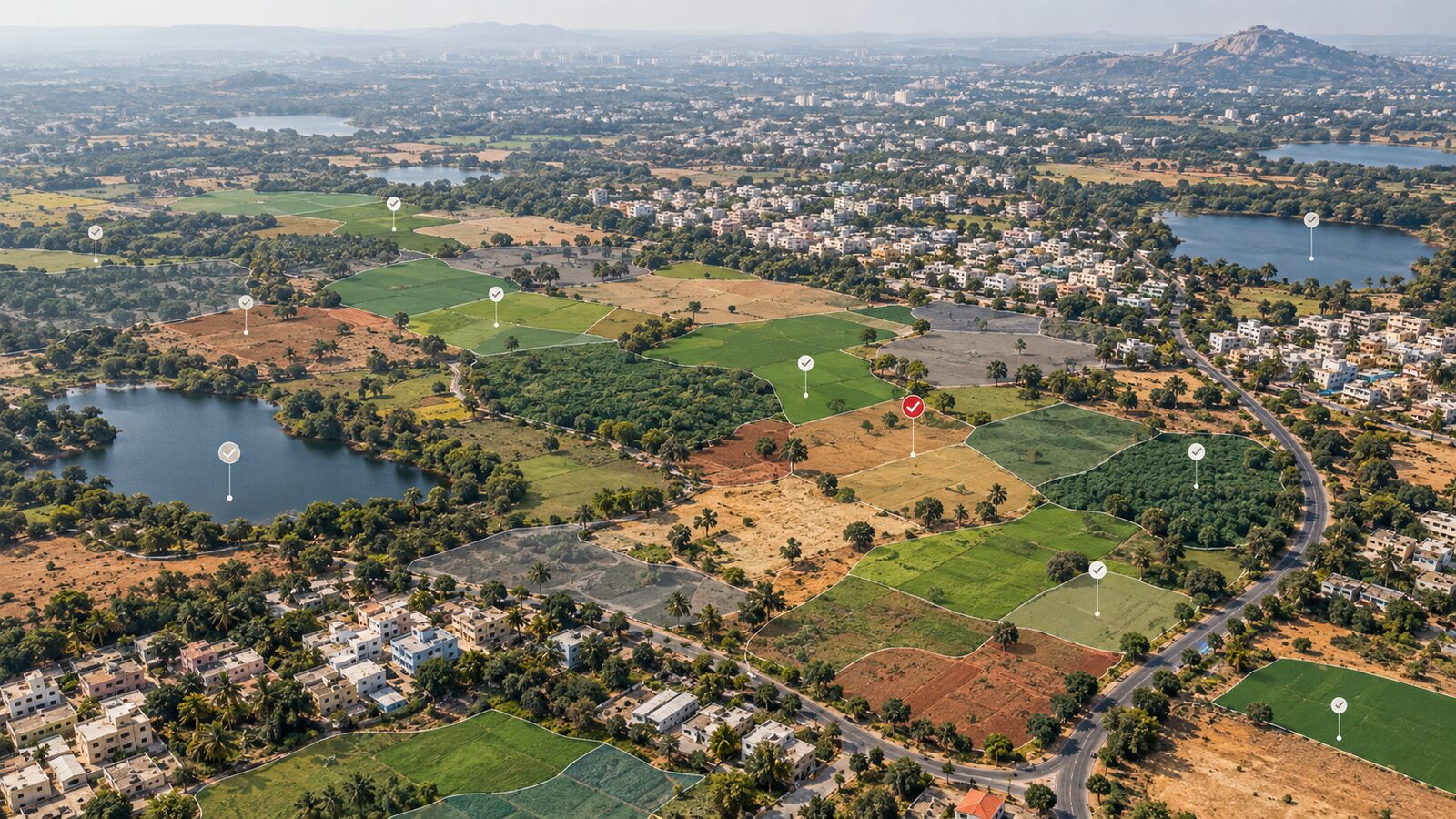
This post focuses on a specific task: using Bhuvan LULC 50K in QGIS to screen urban fringe change around a city edge. Think of Bengaluru's northern fringe near Hesaraghatta, where built-up expansion, agriculture, scrub, water bodies and open land often meet in a visually complex landscape. The goal is not to replace detailed field mapping. The goal is to quickly identify where land cover categories appear stable, where they may have changed, and where higher-resolution imagery or field checks should be prioritised.
NRSC states that the LULC 50K database was generated using three seasons of IRS LISS-III data for 2005-06, 2011-12 and 2015-16, with a 54-level classification system. ISRO also notes that LISS-III data is used for national LULC maps at 1:50,000 scale once in 5 years. These points matter because they tell you what kind of question the layer can answer. It is suitable for regional planning and research screening. It is not a parcel boundary map and should not be treated as one.
What you can and cannot infer
The phrase 1:50,000 scale is important. It suggests a planning-scale dataset, not a cadastral dataset. You can use it to compare broad LULC categories near a transport corridor, reservoir edge, industrial cluster or expanding urban fringe. You should be cautious about using it to claim that a particular plot, building compound or small wetland has definitely changed class.
The source imagery is also important. ISRO's Resourcesat-2A page describes LISS-III as a medium-resolution sensor operating in three VNIR bands and one SWIR band with 23.5 m spatial resolution. That is very useful for landscape interpretation, but it also means small mixed pixels are expected near urban edges. A pixel near a village boundary may contain roof material, bare soil and vegetation together. The class shown by the LULC layer is therefore an interpreted map category, not a direct field label.
For a recruiter or project supervisor, a strong analysis is not one that pretends the map is perfect. A strong analysis explains scale, vintage, uncertainty and the next validation step.
Worked example: Bengaluru north urban fringe
Let us build a clean QGIS workflow around Hesaraghatta Lake and the northern Bengaluru fringe. This is a useful cover area because it has water, agriculture, settlements, scrub and fast-changing peri-urban pressure within a compact landscape.
-
Open QGIS and set the project CRS to a suitable projected CRS for measurement. For Bengaluru, a UTM zone covering southern India is more appropriate for area and distance work than leaving everything in a web map CRS. If you are only browsing, geographic display is acceptable, but for buffer and area calculations you should use a projected CRS.
-
Add a simple reference layer. You can use an administrative boundary, ward boundary, OpenStreetMap extract, or your own study area polygon. Keep this layer local because the Bhuvan layer will be streamed from a server.
-
Create a study buffer around your feature of interest. For a first screening, draw a polygon around Hesaraghatta Lake or use a point near the lake and create a 5 km buffer. This buffer is not a magic distance. It is simply a manageable analytical frame for comparing urban, agricultural and water-related land cover around one visually meaningful place.
-
Add the Bhuvan WMS connection. In QGIS, go to Layer, Add Layer, Add WMS/WMTS Layer. Create a new connection named
Bhuvan LULC 50K. Use the WMS endpoint listed by Bhuvan Store for LULC 50K:https://bhuvan-vec2.nrsc.gov.in/bhuvan/wms. QGIS documentation explains that WMS and WMTS connections are added through the Data Source Manager or the WMS/WMTS layer menu. -
Connect and inspect available layers. Bhuvan's WMS example shows layer naming in the form
lulc:BR_LULC50K_1112, where the state code and cycle are embedded in the layer name. For Karnataka, look for the relevant state LULC 50K layers and the cycle you need. Add the 2005-06, 2011-12 or 2015-16 layer depending on your comparison. -
Clip visually, not physically, if only using WMS. A WMS layer is a rendered map image served over the web. You can overlay your buffer boundary, query where supported and export map layouts, but you should not assume you have downloaded the native vector database. ISRO's service page explicitly says that LULC 50K can be accessed as OGC services but not in native format, with acknowledgement expected when the service is used.
-
Digitise screening zones. Create a new polygon layer called
fringe_screening_notes. Add fields such asdominant_class,confidence,possible_change,reasonandcheck_needed. Trace only broad zones that are large enough to make sense at the source scale. For example, you might mark a cluster as "possible built-up expansion near earlier agricultural class" if the LULC layer, recent imagery and road growth suggest a change. -
Compare with current imagery. Add a recent satellite basemap or authorised imagery source. Use it as a visual comparison layer, not as an automatic truth layer. Your output should identify candidate change areas for follow-up, not produce a final legal land use claim.
-
Prepare a map layout. Include the Bhuvan layer name, cycle year, WMS URL, your study area boundary, north arrow, scale bar and a short limitation note. This turns a casual screenshot into an analytical map.
A practical interpretation checklist
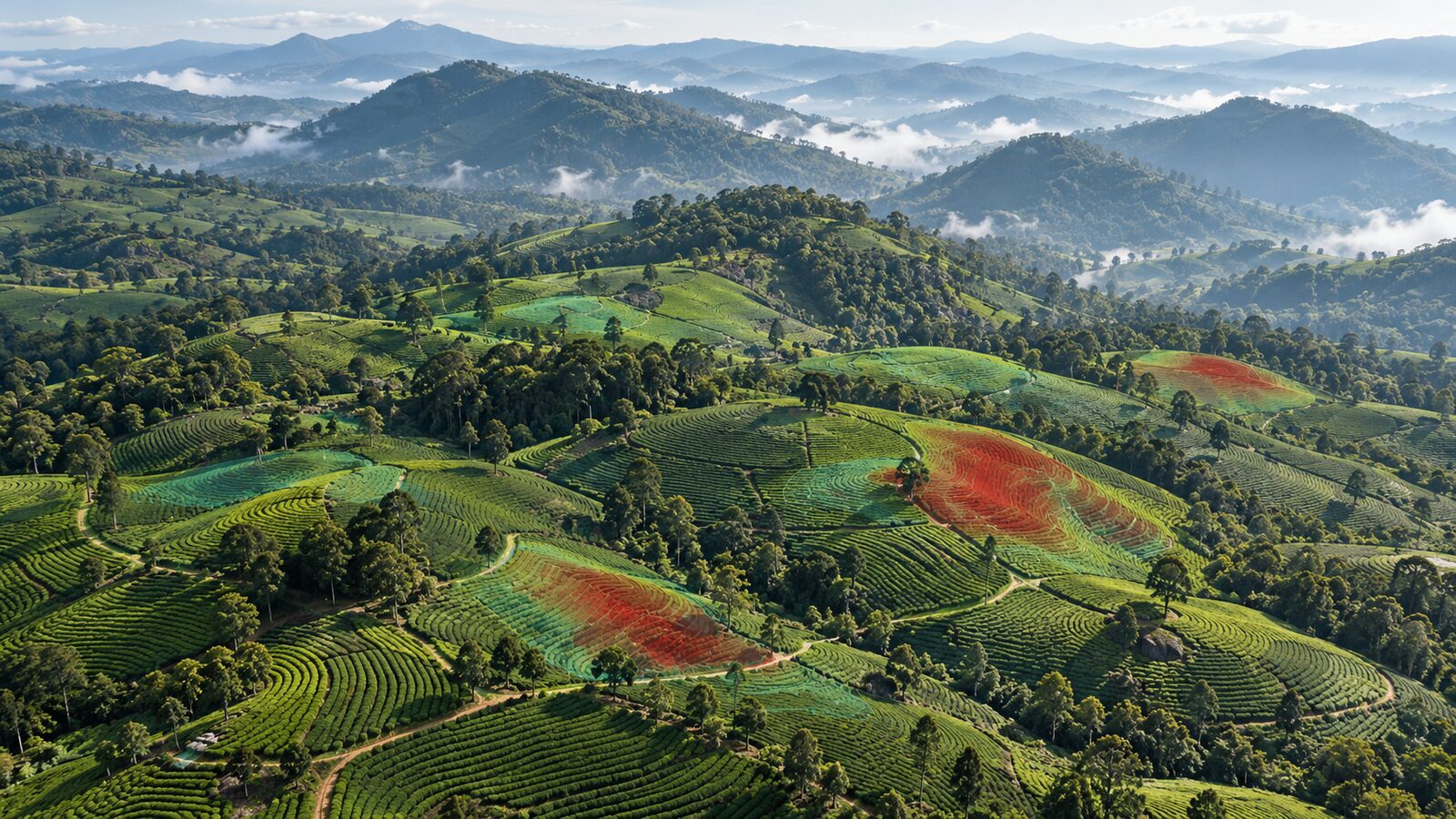
When reading a Bhuvan LULC 50K layer in QGIS, start with the landscape logic. Built-up expansion usually follows roads, industrial parcels, village edges and land value gradients. Agricultural land may remain visually green in some months and bare in others. Water bodies change seasonally, especially smaller tanks. Scrub and wasteland can be confused with fallow agricultural land if you look at only one image date.
Use the LULC layer as a structured historical reference, then ask three questions. First, is the mapped class plausible for the period of the LULC cycle? Second, does current imagery show a different broad land cover pattern? Third, is the apparent change large enough to be meaningful at 1:50,000 scale?
For a portfolio project, you can present the result as a screening matrix. Columns may include zone ID, Bhuvan LULC class, current visual class, evidence, confidence and recommended follow-up. This is often more professional than overclaiming exact change statistics from a WMS layer.
Common beginner mistake
The most common mistake is treating a WMS layer as if it were editable source data. A WMS is primarily a map image service. It is excellent for viewing, overlaying and cartographic comparison, but it is not the same as receiving the original GIS database. If you need area statistics, topology checks or class-by-class change matrices, you need suitable vector or raster data with clear download rights and metadata.
A second mistake is mixing scales. Students sometimes overlay a 1:50,000 LULC layer with cadastral plots or individual building footprints and then make plot-level statements. That creates false precision. Keep your language matched to the dataset: "urban fringe screening", "candidate change zone", "planning-scale pattern" and "requires validation" are better phrases than "confirmed conversion" unless you have stronger evidence.
How to make the output recruiter-friendly
Recruiters evaluating geospatial work are looking for method clarity as much as software familiarity. A good mini-project using this workflow should include a clean map, a short methods paragraph, source acknowledgement, scale limitations and a validation plan. Mention that NRSC hosts LULC 50K through Bhuvan OGC services, that the national cycles include 2005-06, 2011-12 and 2015-16, and that the classification is planning-scale.
You can then add your own value: a QGIS project structure, a standardised interpretation form, a field-check priority map, or a comparison with Sentinel-2 imagery for recent years. That shows you understand both official Indian geospatial data infrastructure and practical analysis.
Frequently asked questions
Can I download the native Bhuvan LULC 50K data directly from QGIS?
No, not from the WMS workflow described here. ISRO states that LULC 50K is available to users as OGC services, not in native format. Use it for viewing and screening unless you have separate authorised access to downloadable data.
Is Bhuvan LULC 50K accurate enough for village-level planning?
It is useful for planning-scale context, but not for plot-level decisions. For village or panchayat-level work, NRSC also describes LULC mapping at 1:10,000 scale under SIS-DP using higher-resolution inputs, which is more suitable for finer local planning.
Should I use WMS or WMTS in QGIS?
Use WMS when you need flexible map rendering and layer access through the Bhuvan WMS endpoint. Use WMTS when a cached tiled service is available and speed matters. QGIS supports both through the WMS/WMTS interface.
Can I calculate land cover change areas from this workflow?
Not reliably from WMS alone. A WMS gives rendered map imagery, so area calculations from traced polygons are only screening estimates. For defensible change statistics, use properly licensed source data with metadata, consistent projection and documented classification rules.
References
- https://www.nrsc.gov.in/nrscnew/Apps_LULC.php
- https://www.isro.gov.in/SpaceBasedEarthObservationServices.html
- https://bhuvan.nrsc.gov.in/wiki/index.php/How_to_use_WMS_services
- https://bhuvan-app1.nrsc.gov.in/2dresources/bhuvanstore.php/bhuvanstore.php
- https://docs.qgis.org/4.2/en/docs/user_manual/working_with_ogc/ogc_client_support.html
- https://www.isro.gov.in/LandResources.html
- https://www.isro.gov.in/RESOURCESAT_2A.html
Cover image: AI-generated illustration (ChatGPT image generation), not satellite data.
Researched and drafted with AI assistance; sources are linked for verification.