Mangrove Moisture Screening in QGIS with Sentinel-2 NDMI
A careful QGIS workflow for using Sentinel-2 NDMI to screen relative canopy-moisture patterns in Bhitarkanika, with cloud masking, aligned pixels and defensible change checks.
Why use NDMI for a mangrove screening map?
Mangroves sit at the meeting point of vegetation, tidal water and exposed mudflat. That makes a simple greenness map easy to misread: a green pixel is not automatically a healthy mangrove pixel, and a darker pixel is not automatically degradation. A more useful first-pass question is, “Where do canopy moisture-related reflectance patterns differ from the surrounding mangrove cover or from another carefully matched date?”
The Normalised Difference Moisture Index, or NDMI, is a transparent way to ask that question. It combines near-infrared (NIR) and shortwave infrared (SWIR) reflectance:
NDMI = (NIR - SWIR) / (NIR + SWIR)
For Sentinel-2, this walkthrough uses Band 8 for NIR and Band 11 for SWIR. Band 8 is supplied at 10 m, while Band 11 is supplied at 20 m. ESA describes Sentinel-2 MSI as a 13-band instrument with 10 m, 20 m and 60 m groups, and the Level-2A catalogue identifies B8 and B11 as the relevant NIR and SWIR-1 bands. ESA instrument overview and Sentinel-2 Level-2A catalogue provide the specifications.
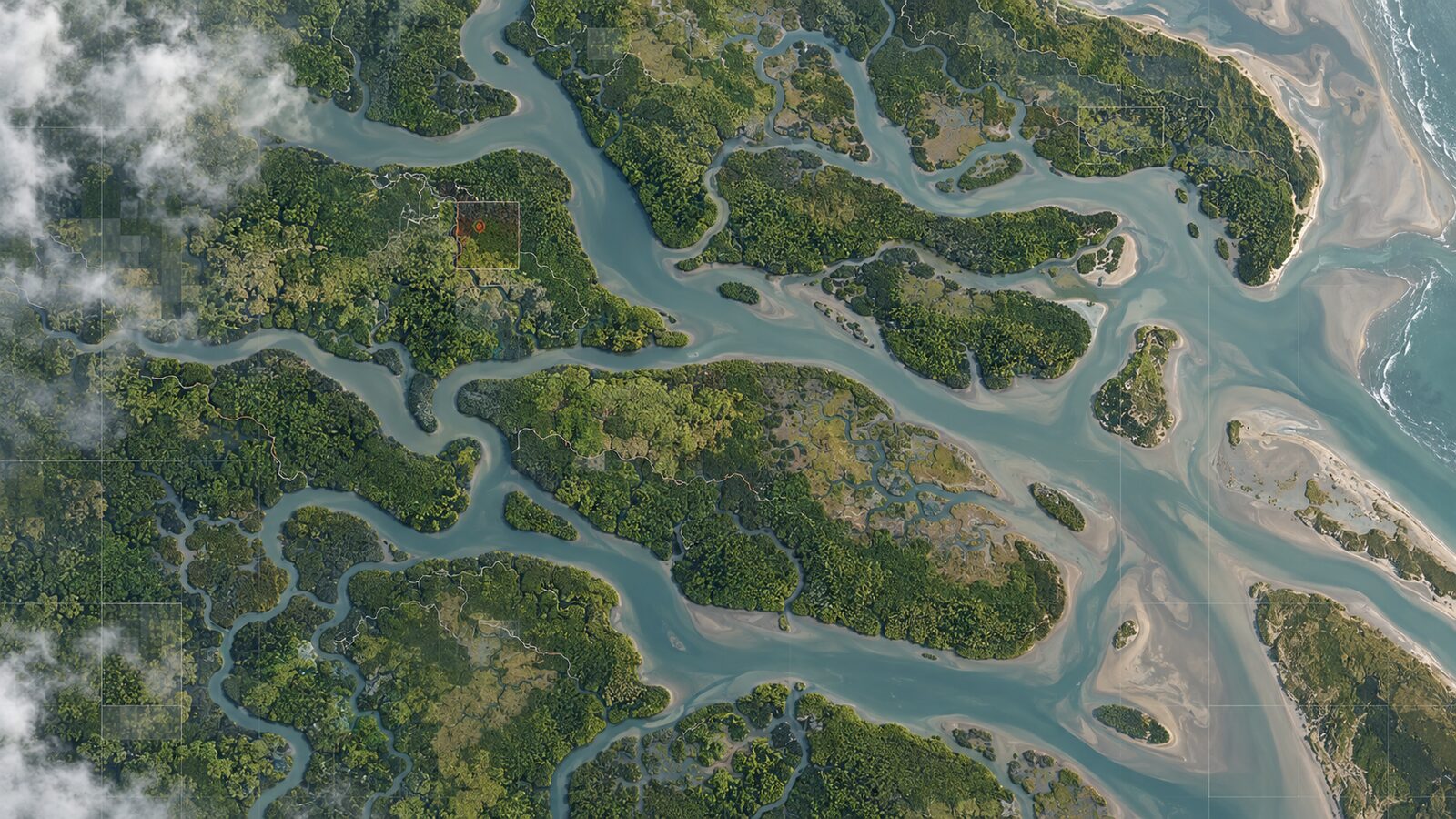
This post builds a screening layer for the Bhitarkanika mangrove landscape in Odisha. It is deliberately not a claim of canopy water content, species composition, biomass, legal forest boundary or damage. It is an evidence layer that helps decide where to inspect imagery, field notes or higher-resolution data next.
Choose inputs that make comparison fair
Start with Sentinel-2 Level-2A imagery, rather than mixing it with Level-1C imagery. Level-2A provides orthorectified bottom-of-atmosphere surface reflectance and includes scene-classification information, aerosol optical thickness and water-vapour layers. Copernicus Level-2A product documentation explains those product characteristics.
For a single-date map, choose the clearest acquisition available and inspect it visually before calculating anything. For a two-date comparison, the discipline matters even more. Use images from a similar part of the annual cycle, avoid obviously different tidal states where possible, and keep the comparison restricted to a compact study area. The aim is to reduce changes caused by water level, seasonal phenology, haze and acquisition conditions.
Download the Level-2A SAFE product from Copernicus Data Space, then retain the following layers:
- B08, the NIR band.
- B11, the SWIR-1 band.
- SCL, the scene-classification layer, to help identify water, cloud shadows, clouds and other unsuitable pixels.
If working from the Earth Engine harmonised collection rather than downloaded SAFE products, remember that its reflectance values are scaled by 10,000. The catalogue also records that the collection harmonises later processing-baseline values with earlier imagery, and lists SCL classes for vegetation, water, cloud shadow, cloud and cirrus. Earth Engine's dataset documentation is important reading before creating a time series.
Worked example: Bhitarkanika NDMI in QGIS
The example below produces one 20 m NDMI raster suitable for visual screening. Working at 20 m is intentional. B11 is natively 20 m, so forcing the final index to 10 m would only interpolate the SWIR input and could make the result look more detailed than its coarsest source band supports.
1. Set up a focused project. Open QGIS and set the project CRS to the UTM zone used by your Sentinel-2 tile. Add a study-area polygon around the creek and mangrove blocks you want to inspect. Keep this polygon as a separate vector layer so every output can be clipped consistently.
2. Load B08, B11 and SCL. In the SAFE product, add the B08 10 m image, the B11 20 m image and the SCL image. Give them short, unambiguous layer names such as b08_date1, b11_date1 and scl_date1. This small naming habit prevents a surprisingly common mistake: calculating an index with bands from different acquisition dates.
3. Align the grids before calculating. Use Processing Toolbox, then GDAL, then Warp (Reproject) to resample B08 onto B11's grid. Match B11's extent, CRS and 20 m pixel size. For continuous reflectance, use bilinear resampling. Save the result as b08_20m_date1.tif. Do not resample B11 to 10 m merely because B08 began at 10 m.
This is not cosmetic housekeeping. QGIS can calculate with loaded raster pixels, but its documentation warns that when input layers have different resolutions, values are resampled using nearest neighbour in the Raster Calculator output settings. Aligning the bands explicitly gives you control over the grid and method before the index is created. QGIS Raster Analysis documentation describes these calculator behaviours.
4. Calculate NDMI. Open Raster, then Raster Calculator. Insert this expression, changing names if yours differ:
("b08_20m_date1@1" - "b11_date1@1") / ("b08_20m_date1@1" + "b11_date1@1")
Set B11's extent and 20 m resolution for the output, then save it as ndmi_date1_20m.tif. The QGIS Raster Calculator writes calculations based on raster pixel values to a new GDAL-supported raster, and layer bands are referenced as layer_name@band_number. QGIS Raster Analysis documentation gives the syntax.
5. Remove unsuitable pixels before interpretation. Load SCL and use it as a screening guide. In the harmonised Sentinel-2 catalogue, class 3 is cloud shadow, class 6 water, classes 8 and 9 are cloud probabilities, and class 10 is cirrus. Mask these areas from the NDMI display or exclude them from zonal summaries. Also inspect the true-colour image manually, because automated labels are useful inputs, not infallible ground truth.
6. Clip and style the map. Clip NDMI to the study polygon. Apply a single fixed colour ramp for all dates you plan to compare, with the same minimum and maximum. A diverging ramp is useful for a difference raster, while a sequential ramp is clearer for one NDMI date. Label the legend as “NDMI, relative canopy-moisture signal”, not “mangrove health”.
7. Make a cautious change layer. Repeat the same workflow for a second, comparable scene. Then calculate:
"ndmi_date2_20m@1" - "ndmi_date1_20m@1"
Positive values indicate a higher NDMI on the second selected image; negative values indicate a lower NDMI. They do not by themselves identify the cause. Open both true-colour composites beside the difference layer and inspect each conspicuous patch at a useful map scale.
What to inspect after the calculation
Treat the index as a triage product. Start with polygons or contiguous patches, not isolated pixels. Check whether a low or changing area coincides with open water, narrow tidal channels, mudflat, cloud shadow, a mixed edge pixel or a clearly altered canopy texture. Add a small polygon grid or manually drawn review polygons, then run zonal statistics for mean NDMI and valid-pixel count. A polygon with few valid pixels deserves less confidence than one supported by a substantial, clean area.
For a field visit, use the map to select a balanced set of points: apparently stable high-NDMI canopy, apparently stable low-NDMI canopy, and areas with notable change. Record canopy condition, water presence, access constraints, tide context and photographs. Those observations turn a visual screening exercise into an interpretable local analysis.
The mistake that ruins most first maps
The most common beginner error is to calculate B08 and B11 directly while accepting whatever output resolution QGIS proposes. That produces a technically valid file, but it can silently involve resampling decisions and mislead readers into seeing 10 m certainty in a SWIR-informed index whose source band is 20 m.
Avoid it by choosing the 20 m B11 grid as the analytical grid, resampling B08 once with a documented method, and retaining the intermediate raster. State the output resolution in your map layout and methods note. The second frequent error is assigning one universal NDMI threshold to “healthy mangrove”. Do not do that. Compare like with like, investigate patterns in the imagery and validate notable areas with independent evidence.
Frequently asked questions
Can this workflow map individual mangrove species?
No, this workflow cannot reliably map individual mangrove species because its purpose is broad canopy-moisture screening at the selected Sentinel-2 analysis grid. Species mapping needs suitable training or reference data, careful class design and independent accuracy assessment, often with finer spatial or spectral information.
Should I use a 10 m output because Sentinel-2 Band 8 is 10 m?
No, use a 20 m output for this B8 and B11 NDMI workflow because Band 11 is a 20 m input. Upsampling Band 11 to 10 m changes pixel dimensions but does not create new SWIR observations, so it can overstate detail.
Is a lower NDMI value proof of mangrove loss?
No, a lower NDMI value is only evidence of a different NIR-to-SWIR relationship in that image. Tidal water, mixed pixels, shadow, haze, seasonality and canopy change can all contribute, so inspect the imagery and seek field or independent reference evidence.
Can I compare NDMI values from any two Sentinel-2 dates?
Not safely without checks. Use Level-2A surface reflectance, remove unsuitable pixels, keep the band alignment and output grid identical, and choose dates with comparable seasonal and tidal context. A map comparison is strongest when its acquisition conditions are explicitly documented.
References
- European Space Agency, Sentinel-2 instrument
- Copernicus Sentinel-2 Level-2A product documentation
- Google Earth Engine, Harmonized Sentinel-2 Level-2A catalogue
- QGIS documentation, Raster Analysis
Cover image: AI-generated illustration (ChatGPT image generation), not satellite data.
Researched and drafted with AI assistance; sources are linked for verification.