Buffer analysis and zonal statistics in QGIS, explained
A practical guide to buffer zones and zonal statistics in QGIS for measuring environmental footprint, grounded in my Delhi NCT industrial impact work with Sentinel-2 indices.
What buffer analysis and zonal statistics do in QGIS
Buffer analysis draws a zone of a set distance around a feature, like a factory point or a road. Zonal statistics then summarise raster values, such as a vegetation index, inside each zone. Used together in QGIS, they let you measure how an environmental signal changes as you move away from a source. In my Delhi NCT industrial impact study, I used exactly this pairing to quantify the footprint of industrial areas on surrounding vegetation, water, and built-up cover.
This post explains both tools step by step, then shows how to combine them with spectral indices from Sentinel-2.
Why this combination matters for environmental work
Most environmental questions are really questions about distance. Does vegetation thin out near an industrial cluster? Does built-up density fall off as you leave a city core? You cannot answer that by looking at a single pixel. You need to group pixels by their distance from a source and compare the groups.
Buffers create those groups. Zonal statistics measure them. That is the whole idea, and it scales from one factory to an entire region like Delhi NCT.
Working with Sentinel-2 in particular helps because its 10 metre bands are fine enough to pick up local variation around a site, while still covering a large area in one scene.
Step 1: Build your buffer zones
A buffer in QGIS is found under Vector > Geoprocessing Tools > Buffer, or the Buffer algorithm in the Processing Toolbox.
Key choices before you run it:
- Input layer. This can be points (factory locations), lines (a river or highway), or polygons (an industrial estate boundary).
- Distance. Set in your layer's map units. Always work in a projected CRS in metres, not degrees. For India I use a UTM zone or an equal-area projection so that a 500 metre buffer is genuinely 500 metres.
- Dissolve result. Turn this off if you want each feature to keep its own buffer, on if you want one merged zone.
Multiple ring buffers for distance decay
A single buffer answers a yes or no question. Multiple rings answer "how much, how far". To study distance decay around Delhi NCT industrial areas, I create concentric rings, for example 0 to 500 m, 500 to 1000 m, 1000 to 2000 m, and so on.
You can build these with the Multi-ring buffer (constant distance) tool, or by buffering at several distances and using Difference to cut the inner ring out of the next one, leaving clean, non overlapping rings. Non overlapping is important, otherwise pixels get counted twice.
Step 2: Prepare the raster you will summarise
Zonal statistics needs a single band raster of continuous values. Spectral indices are ideal here because each one isolates a different surface property:
- NDVI (Normalised Difference Vegetation Index) for vegetation health and density.
- NDWI (Normalised Difference Water Index) for water and surface moisture.
- NDBI (Normalised Difference Built-up Index) for built-up and impervious surfaces.
In QGIS you compute these in the Raster Calculator from Sentinel-2 bands. NDVI uses NIR and Red, NDWI uses Green and NIR, and NDBI uses SWIR and NIR. Make sure the index raster shares the same CRS as your buffers before going further. A mismatch in projection is the most common reason zonal results come out wrong.
Step 3: Run zonal statistics
Open the Zonal statistics algorithm in the Processing Toolbox. You give it:
- Input layer: your buffer polygons (the rings).
- Raster layer: your index raster, for example NDVI.
- Statistics to calculate: mean is the workhorse. I usually also keep count, minimum, maximum, and standard deviation.
The tool writes new columns into the buffer layer's attribute table, one per statistic. Each ring now carries the mean NDVI, mean NDWI, or mean NDBI of all pixels that fall inside it.
Open the attribute table and you can read the story directly. If mean NDVI rises as you move outward from an industrial zone, vegetation is recovering with distance. If mean NDBI is high in the inner ring and drops off outward, the built-up footprint is concentrated near the source. This is the quantitative backbone of the Delhi NCT analysis.
Step 4: Combine indices to read the footprint
One index gives you one view. Together they describe the environment around a site much more honestly.
Around a typical industrial cluster you might expect:
- Lower NDVI close in, where vegetation is replaced or stressed.
- Higher NDBI close in, reflecting dense construction and hard surfaces.
- NDWI patterns that depend on local water bodies and drains.
Running zonal statistics for all three across the same ring set lets you compare them ring by ring in one table. I export that table to a spreadsheet and plot mean index against ring distance. Those simple distance profiles are far more convincing than a coloured map alone, because they put a number on the gradient.
Practical tips from my own workflow
A few things that save time and prevent errors:
- Project everything to metres first. Buffers in degrees are meaningless for distance work in India.
- Keep rings non overlapping so no pixel is counted in two zones.
- Mask clouds and water in the index raster before zonal statistics if they are not part of your question, otherwise they skew the mean.
- Match pixel size to buffer width. A 2000 m ring over 10 m Sentinel-2 pixels gives a solid sample. Very thin rings over coarse pixels give noisy means.
- Always check the count column. A ring with very few pixels has an unreliable mean.
Bringing it together
Buffer analysis and zonal statistics are two of the most useful tools in QGIS for anyone studying environmental footprint. Buffers turn a source into distance based zones. Zonal statistics turn raster indices into numbers for each zone. Pair them with NDVI, NDWI, and NDBI from Sentinel-2, and you can describe how an industrial area, a road, or a city affects its surroundings in a way that is repeatable and easy to defend.
This is the exact method behind my Delhi NCT industrial impact work, and it transfers cleanly to water, urban growth, and land cover questions across Punjab, Chandigarh, and the rest of India.
Frequently asked questions
Where do I find the buffer tool in QGIS?
Buffer analysis is under Vector > Geoprocessing Tools > Buffer, or as the Buffer algorithm in the Processing Toolbox. You set an input layer (points, lines, or polygons) and a distance to draw a zone around each feature.
Why should buffer distances be set in metres instead of degrees?
Buffers in degrees are meaningless for distance work in India, so you should always work in a projected CRS in metres, using a UTM zone or equal-area projection so a 500 m buffer is genuinely 500 m.
Which statistic matters most when running zonal statistics on an index raster?
Mean is the workhorse statistic for zonal statistics, though it's also useful to keep count, minimum, maximum, and standard deviation for each ring or zone.
Why do multi-ring buffers need to be non-overlapping?
Rings must be non-overlapping so that no pixel gets counted in two zones, which would skew the zonal statistics means used to study distance decay around a source.
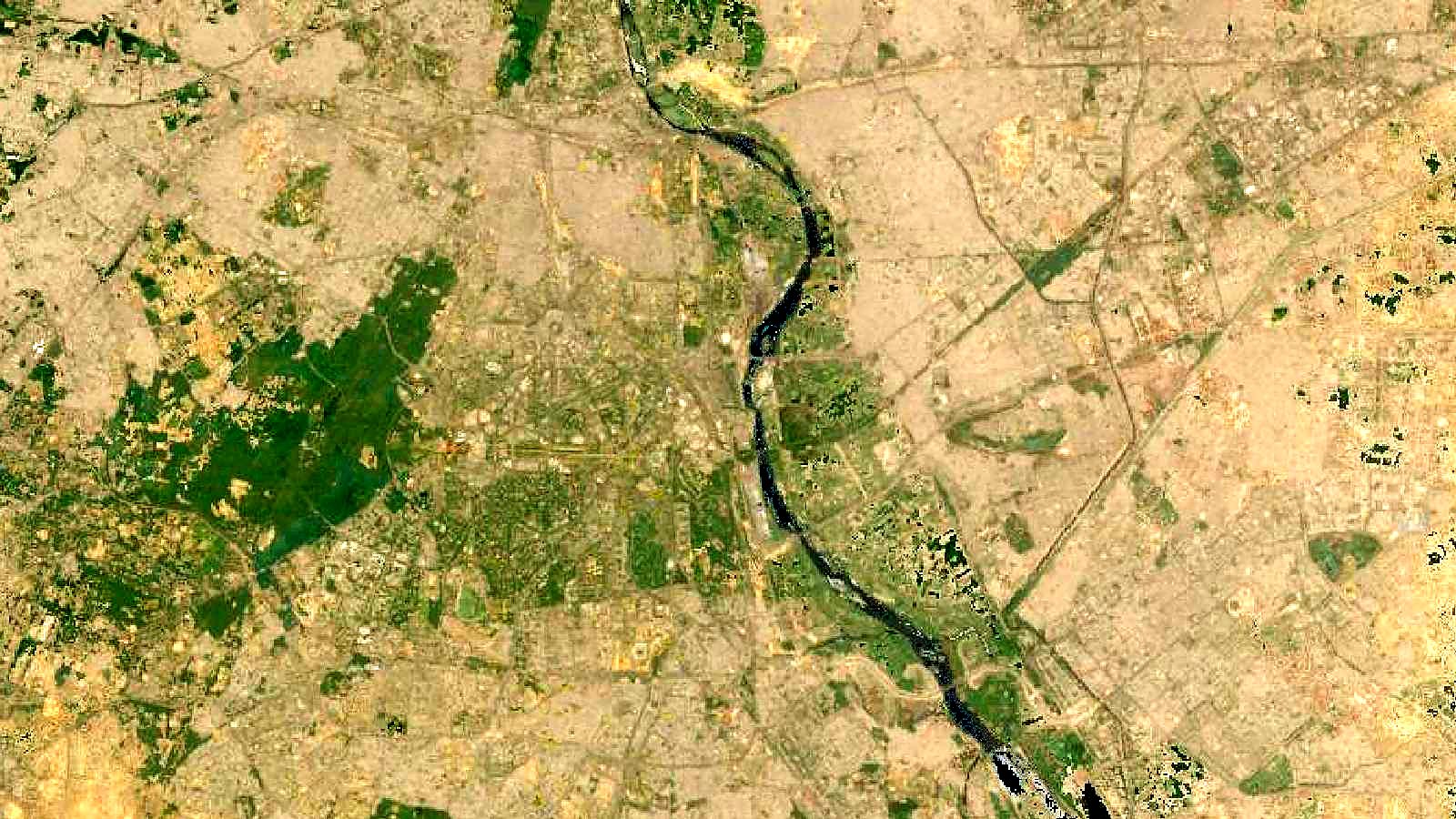
Cover image: Landsat true-colour composite of Delhi along the Yamuna (2000), NASA/USGS Landsat WELD via NASA GIBS (public domain).