CartoDEM in QGIS for Slope Screening in the Himalaya
A practical CartoDEM and QGIS workflow for Indian students who want to screen steep Himalayan terrain, create slope and hillshade layers, and avoid common DEM mistakes.
Why CartoDEM deserves a place in Indian terrain work
For students working on Indian terrain, CartoDEM is more than another elevation layer to download. It is an Indian DEM product derived from Cartosat-1 stereo imagery and distributed through ISRO and NRSC systems. That makes it especially useful when your study area is in the Himalaya, Western Ghats, Deccan plateau, coastal escarpments, or any other region where local topography shapes settlement, roads, drainage, agriculture, and hazard exposure.
Cartosat-1 was launched on 5 May 2005 by PSLV-C6 from Sriharikota. ISRO describes it as the first Indian Remote Sensing satellite capable of providing in-orbit stereo images. Its two panchromatic cameras, PAN Fore and PAN Aft, were designed for stereo viewing, DEM generation, ortho-image products, and GIS applications. ISRO lists the Cartosat-1 orbit as a 618 km polar sun-synchronous orbit, with an orbit period of 97 minutes, 14 orbits per day, a 10:30 am equator crossing time, 126-day repetivity, and 5-day revisit capability.
The key idea is simple: if two images see the same ground from different viewing angles, elevation can be estimated from parallax. ISRO notes the distinctive Cartosat-1 camera geometry: the Fore camera looks at +26 degrees and the Aft camera at -5 degrees, giving along-track stereo imagery at 2.5 m resolution. From such stereo data, national-level elevation products were generated, including CartoDEM. NRSC states that IRS satellite-derived DEM with 30 m or coarser posting is available as free download, while finer DEM products follow separate access and pricing conditions. The Open Government Data platform also records that Cartosat-1 stereo DEM with 1 arc second, approximately 30 m, posting is available through the Bhuvan portal.
This post focuses on a specific use case: using CartoDEM in QGIS to prepare a first-pass slope screening map around a Himalayan reservoir corridor. The example is Tehri Reservoir in Uttarakhand, a visually clear mountain reservoir where roads, settlements, cut slopes, drainage lines, and valley walls make terrain interpretation meaningful. This is not a substitute for geotechnical investigation or landslide susceptibility modelling. It is a clean student-level workflow for asking: where is the terrain steep enough to deserve closer field or image interpretation?
What you can and cannot infer from CartoDEM
A DEM stores elevation values in a raster grid. When the posting is about 30 m, each cell represents terrain at a neighbourhood scale, not a boulder, retaining wall, individual terrace, or single building plot. For district or watershed screening, that can be very useful. For engineering drawings, road-cut stability decisions, or site-level construction clearance, it is too coarse on its own.
Also remember that DEM products may not always behave like pure bare-earth terrain. Depending on how a product was generated and filtered, tall vegetation, built-up surfaces, steep shadows, water edges, and stereo matching issues can influence the surface. In a Himalayan landscape, you should treat your slope map as a screening layer, then cross-check with optical imagery, field notes, geological maps, road alignments, drainage, and known landslide inventories if available.
The strength of CartoDEM is that it gives Indian students a nationally relevant elevation base. The limitation is that elevation is still modelled data, not the ground itself. That distinction matters when your map is used outside a classroom.
Worked example: slope screening around Tehri Reservoir
Open QGIS and create a new project. Set the project CRS to a suitable projected CRS for your area before calculating terrain derivatives. For Tehri, a UTM zone covering the region is a practical choice, because slope calculations are easier to reason about when horizontal units are metres. Avoid doing slope analysis directly in a geographic CRS measured in degrees unless the tool explicitly handles unit conversion. This is one of the most common beginner mistakes.
Download the CartoDEM tile or tiles covering your study area from Bhuvan or an NRSC data portal, depending on current access route and product availability. Keep the original file untouched in a raw data folder. In QGIS, add the DEM through Layer > Add Layer > Add Raster Layer. Open Layer Properties > Information and check the CRS, pixel size, band count, data type, and NoData value. If the layer draws as a grey rectangle, that is not a failure. It may simply need contrast stretching or correct NoData handling.
Next, clip the DEM to a focused study boundary. You can digitise a polygon around the reservoir corridor or use an administrative or watershed boundary if your assignment provides one. Use Raster > Extraction > Clip Raster by Mask Layer. Save the clipped output as a GeoTIFF. A smaller raster makes every later step quicker and easier to inspect.
Now reproject the clipped DEM if needed. Use Raster > Projections > Warp (Reproject). Choose the projected CRS you want for the analysis output. Use bilinear resampling for continuous elevation values. Keep a clear filename, such as tehri_cartodem_utm.tif. The point is not only technical correctness, but auditability. A recruiter or supervisor should be able to understand your processing chain from filenames and map notes.
Create a hillshade first. QGIS documentation describes hillshade as a terrain visualisation derived from a Digital Terrain Model, with values from 0 for complete shadow to 255 for complete sun. In Processing Toolbox, search for Hillshade under Raster terrain analysis. Use your projected DEM as the elevation layer. QGIS lists a default Z factor of 1.0, default azimuth of 300 degrees, and default vertical angle of 40 degrees for the native hillshade algorithm. These defaults are acceptable for a first visual check. Save the result as tehri_hillshade.tif.
Place the hillshade below other layers and use it as a visual relief base. It helps you see ridges, valley walls, spurs, and drainage texture. Do not classify the hillshade as if it were elevation. It is illumination, not height.
Then create slope. QGIS defines slope as the angle of inclination of the terrain, expressed in degrees in the native Slope tool. In Processing Toolbox, run Raster terrain analysis > Slope. Use the same projected DEM, keep Z factor at 1.0 when horizontal and vertical units are both metres, and save the output as tehri_slope_deg.tif. Style it with a graduated colour ramp. A restrained ramp is better than a dramatic one: pale colour for gentle slopes, stronger colour for steeper slopes.
For a first-pass screening map, create classes rather than leaving a continuous slope rainbow. For example, you might label classes as gentle, moderate, steep, and very steep, with class breaks chosen for your assignment or local guidelines. If you do not have an official threshold source, say so plainly in the map notes: these are exploratory classes, not regulatory categories. That honesty is part of good GIS work.
Finally, combine slope with context. Add roads, settlements, drainage, and recent optical imagery if available. Around Tehri Reservoir, the slopes immediately above roads and reservoir margins are often the places a student would inspect first because exposure is high. A steep forested slope far from infrastructure may still matter geomorphologically, but it has a different planning meaning from a steep road-cut above a village approach road.
A simple interpretation checklist
Start with the DEM and hillshade. Look for artefacts: tile edges, striping, pits, spikes, flat water surfaces, and strange ridges that do not match imagery. If an apparent high-risk patch follows a tile boundary, suspect data processing rather than real terrain.
Move to the slope map. Identify clusters of high slope rather than isolated single pixels. A single steep pixel may be noise, a sharp road edge, or a resampling artefact. A connected zone on a valley wall is more meaningful.
Compare with drainage and roads. Steep slopes near drainage lines can indicate incised terrain, while steep slopes beside roads may reflect cut-and-fill activity. For a student project, digitise a few sample polygons and write short interpretation notes: slope class, land cover visible in imagery, distance to road, and whether the pattern is natural hillside, road cutting, reservoir bank, or possible artefact.
Export a map layout with the DEM source, processing date, CRS, slope units, and limitations. This is where many portfolios become stronger. A clean map that states its assumptions is more professional than a colourful map that hides uncertainty.
Common beginner mistake: mixing degrees and metres
The most damaging beginner mistake is calculating slope from a DEM that is still in latitude-longitude degrees, then assuming the result is physically meaningful. Elevation is usually in metres, but the horizontal grid spacing in a geographic CRS is angular. That mismatch can distort terrain derivatives.
The safer workflow is: inspect the source CRS, clip the DEM, reproject to a suitable metre-based projected CRS, then run hillshade, slope, aspect, ruggedness, or other terrain tools. QGIS terrain tools include Z factor settings, but beginners often use them without understanding what problem they are solving. If your horizontal and vertical units are both metres, a Z factor of 1.0 is the clean baseline.
A second mistake is treating 30 m DEM output as if it can answer site-level engineering questions. It cannot. Use it to screen, prioritise, teach, compare, and communicate. For detailed slope stability, you need better elevation data, field validation, material properties, drainage conditions, rainfall triggers, and expert review.
Why this workflow is useful for careers
For Indian GIS students, this is a portfolio-friendly exercise because it connects national satellite data, QGIS processing, terrain interpretation, and practical communication. Recruiters do not only look for tool names. They look for judgement: did you choose the right data scale, handle CRS correctly, preserve the raw data, document processing steps, and avoid overclaiming?
CartoDEM also gives you a good bridge between remote sensing and applied geography. You can extend the same workflow into watershed planning, road vulnerability screening, reservoir catchment studies, rural infrastructure planning, glacier valley context mapping, or land-use suitability analysis. The technical steps are modest, but the thinking behind them is what makes the work professional.
Frequently asked questions
Is CartoDEM free to use for student projects?
CartoDEM at 30 m or coarser posting is available as free download according to NRSC policy notes, but finer products follow separate access conditions. Students should always check the current Bhuvan or NRSC terms before using data in publications, internships, or client-facing work.
Can I use CartoDEM instead of SRTM or Copernicus DEM?
Yes, you can use CartoDEM when your study is in India and you want an Indian satellite-derived elevation source. It is still sensible to compare it with another DEM if your conclusion depends strongly on slope, drainage, ridgelines, or elevation differences.
Why does my slope map look blocky?
A slope map from an approximately 30 m DEM can look blocky because each output value is calculated from gridded elevation cells. Reprojecting carefully, clipping to a sensible area, and using appropriate symbology can improve readability, but it cannot create true site-level detail.
Should I use hillshade or slope for analysis?
Use slope for analysis and hillshade for visual interpretation. Hillshade is an illumination model that helps you see landforms, while slope stores terrain inclination values. A good QGIS layout often uses hillshade underneath a semi-transparent slope layer for context.
References
- https://www.isro.gov.in/CARTOSAT_1.html
- https://www.isro.gov.in/Cartosat_1_Completes_a_Decade_in_orbit.html
- https://www.nrsc.gov.in/nrscnew/Dataproducts_Thematic_cartodem.php?lang_code=en
- https://www.data.gov.in/catalog/digital-elevation-model-dem-generated-cartosat-1-satellite-data-india
- https://docs.qgis.org/3.44/en/docs/user_manual/processing_algs/qgis/rasterterrainanalysis.html
- https://docs.qgis.org/3.44/en/docs/user_manual/processing_algs/gdal/rasteranalysis.html
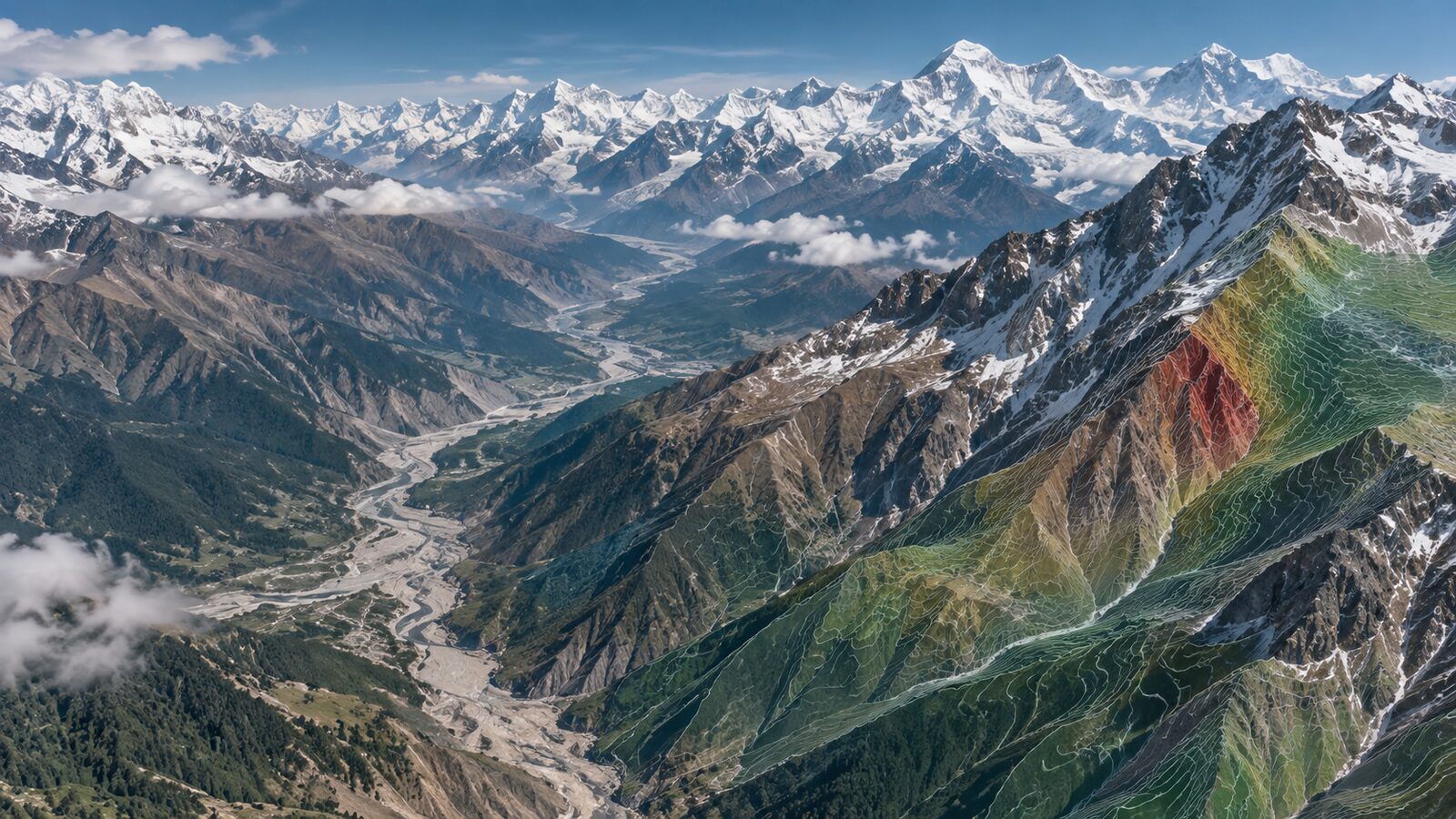
Cover image: AI-generated illustration (ChatGPT image generation), not satellite data.
Researched and drafted with AI assistance; sources are linked for verification.