India-WRIS River Gauge CSVs in QGIS for Monsoon Hydrographs
A practical guide to turning India-WRIS and National Water Data Portal river level CSVs into mapped station layers, monsoon hydrographs, and QA-ready flood-season notes in QGIS.
Why river gauge CSVs deserve a place in your GIS workflow
Satellite flood maps are powerful, but they become much more useful when they are checked against river gauge behaviour. For Indian students and early-career analysts, the National Water Data Portal and India-WRIS are practical starting points because they publish official water datasets from agencies such as the Central Water Commission (CWC), Central Ground Water Board, IMD and NRSC. The Ministry of Jal Shakti describes India-WRIS as a public portal for dashboards covering rainfall, river water levels and discharge, water bodies, ground water levels, reservoir storage, evapotranspiration and soil moisture.
This post focuses on one narrow workflow: using CWC river water level telemetry CSVs from the National Water Data Portal in QGIS to create station maps and monsoon hydrographs. It is not a flood-depth model and it is not a substitute for hydraulic modelling. Think of it as the evidence layer you build before you interpret flood extents, reservoir releases, embankment risk, or unusually sharp monsoon rises.
CWC states that it has a hydrological observation network of 878 sites on major rivers and tributaries, plus 76 exclusive meteorological stations. The National Water Data Portal dataset page for river water level telemetry lists basin-wise CSV resources, including Godavari, Krishna, Narmada, Cauvery, Tapi, Mahanadi, Brahmani and Baitarni, Sabarmati, Pennar, Subernarekha and other river groupings. The same dataset page identifies the data producer agency as CWC and the format as CSV and API. That makes the data very approachable for QGIS users.
What you can build
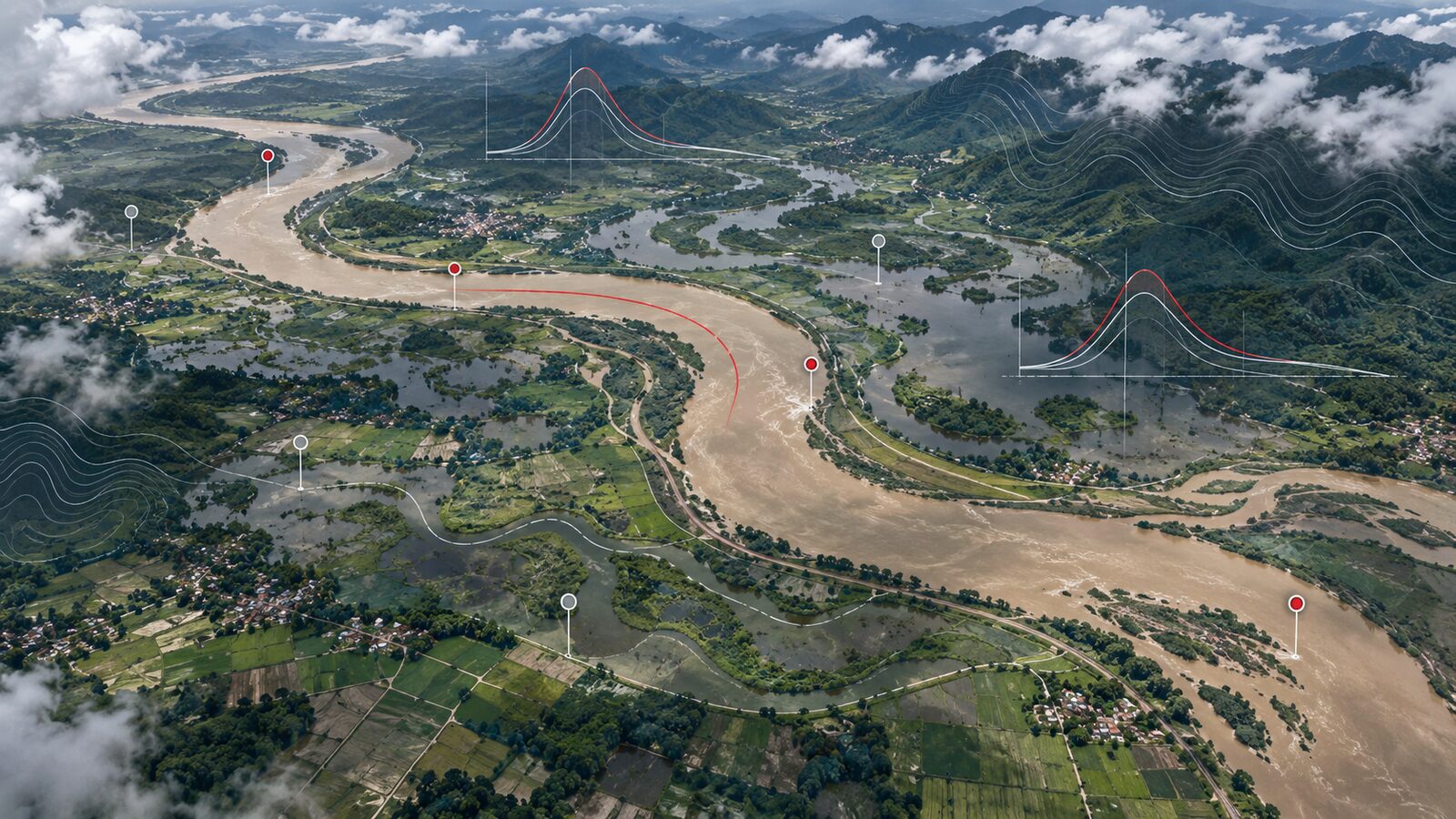
A good beginner project is a flood-season hydrograph dashboard for the lower Godavari around Rajahmundry and Dowleswaram. This reach is visually strong in satellite imagery because the river widens, splits into distributaries and connects directly with an intensive delta irrigation landscape. It is also analytically useful because water level changes can be compared with rainfall maps, Sentinel-1 flood extents, field reports, or district situation reports.
The output can be simple but valuable:
- A point layer of river gauge stations.
- A cleaned time-series table of hourly water levels.
- A QGIS layout showing station locations, river context and a hydrograph for the selected monsoon window.
- A short interpretation note that separates observed water-level rise from mapped inundation.
The last point matters. A high water level at a gauge does not automatically mean the whole floodplain is inundated. Conversely, local waterlogging may appear in low-lying fields even when a main-river gauge is below a major warning threshold. GIS becomes stronger when you keep these signals separate.
Data to download
Start from the National Water Data Portal dataset titled River Water Level (Telemetry - Hourly), Central Water Commission (CWC). The resource list is grouped by river basin and period. For example, the dataset page lists Godavari resources for 1961-1990, 1991-2020 and 2021-2025, with CSV downloads and graph preview links. Similar grouped CSV resources are listed for several other Indian basins.
For a classroom or portfolio project, use the 2021-2025 Godavari telemetry resource rather than trying to process every historical resource at once. It is recent enough for a modern case study and smaller than a multi-decade download. Keep the raw CSV unchanged in a folder named raw, then work on a copied file in a folder named processed. This habit makes your analysis reproducible and keeps you from accidentally editing the original government download.
Open the CSV in a spreadsheet only to inspect it, not to manually clean hundreds of rows. Look for station name, timestamp, water level and any location fields. If latitude and longitude are present, QGIS can create points directly. If the file has station codes but no coordinates, create a separate station metadata table and join it using the station code. Do not geocode stations by typing names into a web map unless you clearly label the result as approximate.
Step-by-step in QGIS
First, add the CSV as a table. In QGIS, open the Data Source Manager and choose the Delimited Text tab. QGIS documentation notes that delimited text files such as CSV files can be loaded as simple tables, and that Add Delimited Text Layer is designed for files containing coordinates or geometry. Select the file, set the delimiter to comma if it is a standard CSV, and confirm that the first record contains field names.
Second, check the geometry. QGIS documentation says that when geometry is defined by coordinates, the X and Y coordinate fields must be numbers. In a longitude-latitude table, X is longitude and Y is latitude. This is a common place to make a silent mistake. If points appear off the coast of Africa or in the wrong Indian state, check whether you swapped latitude and longitude.
Third, set the coordinate reference system. For decimal degree latitude and longitude, start with WGS 84. Once the points look correct, save the layer to a GeoPackage. Avoid leaving the project dependent on a loose CSV path, because charts, joins and styles can break when files are moved.
Fourth, clean the timestamp. The National Water Data Portal page describes the dataset as hourly river water level telemetry, so your time column should behave like a date-time field. If QGIS imports it as text, use the Field Calculator to create a new date-time field with an expression that matches the CSV format. Use a small subset first and verify that sorting by time produces a sensible sequence.
Fifth, filter the monsoon window. For a lower Godavari example, you might filter to June through September for one recent year in the downloaded resource. Use the Query Builder or a temporary selected export. The point is to keep the first map readable. If you try to symbolise every hourly record for several years, the map and chart will quickly become cluttered.
Sixth, create the hydrograph. QGIS can display temporal layers through the Temporal tab in Layer Properties. The documentation describes dynamic temporal control, including a single date-time field configuration where features are rendered when the field value falls inside the map canvas temporal frame. For a station hydrograph, you can also use the DataPlotly plugin or export the cleaned table to a charting tool. In a portfolio post, include the map and explain the decisions behind the chart: station used, period selected, missing values removed and whether the line shows raw hourly values or daily summaries.
Worked example: lower Godavari monsoon note
Suppose you are preparing a short monsoon note for the Godavari near Rajahmundry. Download the Godavari 2021-2025 hourly water level CSV from the National Water Data Portal. In QGIS, load the CSV, create station points if coordinates are available, then save the layer as godavari_gauge_2021_2025.gpkg. Add a river layer or a simple OpenStreetMap basemap only for orientation.
Next, filter one station around the lower Godavari reach and extract the monsoon months for a single year. Build a line chart with time on the horizontal axis and water level on the vertical axis. On the map, symbolise the selected station with a strong colour and use lighter symbols for other gauges. Add labels for only the selected station and major nearby towns to avoid a noisy map.
Your interpretation note can be short:
During the selected monsoon window, the station hydrograph shows the timing and shape of river-level rise at the gauge. This supports satellite flood interpretation by indicating when the river was rising, peaking or falling near the acquisition date. The hydrograph should be read with rainfall, upstream releases and local drainage context before making flood-impact claims.
That is the kind of careful sentence recruiters notice. It shows that you can use data, but also that you understand what the data does not prove by itself.
Common beginner mistake
The most common mistake is treating a gauge point as if it represents a whole district. A river gauge records conditions at a specific site. It may be excellent for timing a flood wave on the main river, but weak for explaining local drainage congestion, embankment breaches, tidal backwater, canal operation or urban flooding away from the river.
Avoid this by writing a short metadata note inside your project. Include the dataset title, producer agency, download date, station name, time range and any cleaning steps. Then add a limitation sentence to the map layout. This is not just academic neatness. It protects your interpretation from overclaiming and makes your work easier to audit.
Another frequent issue is mixing time zones and date formats. If one field is interpreted as text and another as date-time, charts may sort alphabetically rather than chronologically. Always test with a small extract and check the first and last timestamp after sorting. For hourly telemetry, a one-row shift or misread day-month order can change the story of a flood peak.
Frequently asked questions
Is India-WRIS the same as the National Water Data Portal?
India-WRIS is a public water information system, while the National Water Data Portal hosts downloadable datasets and APIs under NWIC. For this workflow, use India-WRIS for discovery and dashboards, then use the portal CSV resources when you need repeatable QGIS analysis.
Can I use hourly gauge data to map flood depth?
No, hourly gauge data alone cannot map flood depth. It records water level at station locations, while flood depth needs terrain, water surface information, hydraulic assumptions and validation. Use gauge data to support timing, plausibility checks and interpretation of remote-sensing flood maps.
Should I interpolate river water levels between gauges?
Usually no, unless you have a defensible hydrological reason. QGIS documents IDW and TIN as common interpolation methods, but river levels follow channel hydraulics, controls and backwater effects. A smooth surface between sparse gauges can look convincing while being physically misleading.
What should I show in a student portfolio map?
Show the station location, river context, selected time window and a clean hydrograph. Add a concise methods note with source, producer agency, period and limitations. Recruiters value evidence that you can clean data, document choices and avoid overstating what a map proves.
References
- https://www.pib.gov.in/Pressreleaseshare.aspx?PRID=1643776&lang=2®=48
- https://www.nwdp.nwic.gov.in/en/dataset/river-water-level-telemetry-hourly-central-water-commission-cwc
- https://cwc.gov.in/hydro-meteorological-observation
- https://documentation.qgis.org/3.44/en/docs/user_manual/managing_data_source/supported_data.html
- https://doc.qgis.org/3.44/en/docs/user_manual/managing_data_source/opening_data.html
- https://docs.qgis.org/testing/en/docs/user_manual/working_with_vector/vector_properties.html
- https://docs.qgis.org/4.2/en/docs/gentle_gis_introduction/spatial_analysis_interpolation.html
Cover image: AI-generated illustration (ChatGPT image generation), not satellite data.
Researched and drafted with AI assistance; sources are linked for verification.