Map Mahanadi Sediment Plumes in QGIS with Sentinel-2 NDTI
A practical QGIS workflow for screening relative turbidity patterns in the Mahanadi delta with Sentinel-2 surface reflectance, NDTI and careful water masking.
What this workflow can tell you
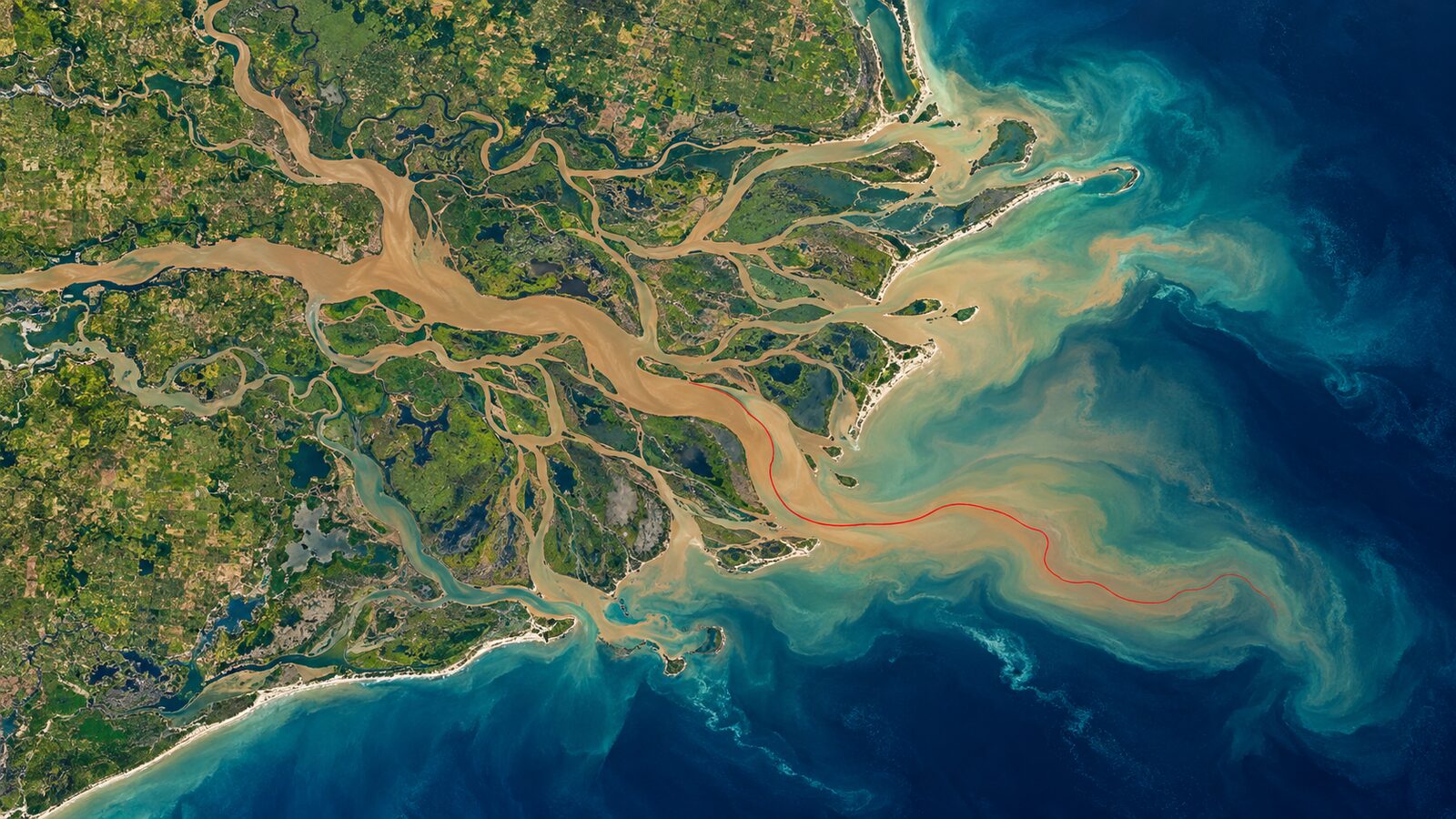
The Mahanadi delta is a strong place to learn coastal-water remote sensing because river water, tidal water and suspended sediment can create visible spatial contrasts. This workflow uses the Normalised Difference Turbidity Index, or NDTI, to screen those contrasts in a Sentinel-2 image in QGIS.
The important word is screen. NDTI is a relative optical indicator, not a direct laboratory measurement of turbidity. It can help you identify where the red-to-green reflectance relationship is higher or lower within a comparable, clear-water scene. To report turbidity in NTU, you need field observations collected close to the satellite overpass and a locally evaluated calibration model.
This distinction matters particularly in an estuary. A bright pixel may reflect suspended sediment, but it can also be affected by shallow bottom, mixed land-water pixels, cloud haze, sunglint, floating material or imperfect atmospheric correction. Treat the output as a map for prioritising inspection and comparing like with like, not as proof of a water-quality standard being breached.
Why Sentinel-2 and NDTI fit the task
Sentinel-2 Level-2A provides atmospherically corrected surface reflectance. This is a better starting point than Level-1C top-of-atmosphere reflectance when comparing water colour across dates, because the Level-2A processing corrects for molecular scattering, atmospheric gases and aerosols. It also supplies a Scene Classification Layer, abbreviated SCL, alongside the reflectance product.
For this exercise, use B03, green, and B04, red. Both are native 10 m Sentinel-2 bands. The Copernicus documentation lists their centre wavelengths as 0.56 micrometres for B03 and 0.665 micrometres for B04. At 10 m, a pixel is still much larger than a narrow channel or a small boat, so keep your interpretation at the scale of broad water patterns rather than individual features.
Calculate NDTI as:
NDTI = (B04 - B03) / (B04 + B03)
A study of the Chamoli disaster using Sentinel-2 describes this red and green formulation, with B04 as red and B03 as green. It explains the basic interpretation: higher positive NDTI is associated with a stronger turbidity response, while more negative values are associated with clearer water. That relationship is useful, but it is not a universal conversion to suspended-sediment concentration or NTU.
NDTI is best used here to compare pixels from the same carefully selected scene or to compare dates processed with the same method. The physical relationship can change with particle type, water depth, bottom reflectance, dissolved matter and atmosphere. A delta also changes with tide and river discharge, so record the acquisition date and time, tidal context if available, and recent rainfall before explaining a difference as a sediment event.
Prepare a defensible scene
Start in the Copernicus Data Space Ecosystem and search for a Sentinel-2 Level-2A scene covering the Mahanadi mouth near Paradip. Choose a date with the least cloud over your actual water area, not merely a low scene-wide cloud percentage. A scene can have an excellent headline cloud score while the estuary is obscured.
Download the Level-2A product and locate the 10 m B03 and B04 files. Add both files to QGIS. Also add B08, the 10 m near-infrared band, which you will use to make a basic water mask. Sentinel-2 Level-2A products include surface reflectance at 10 m, 20 m and 60 m resolutions; the native 10 m group includes B02, B03, B04 and B08.
Before calculating anything, check three details.
- Confirm that B03, B04 and B08 belong to the same product, acquisition and tile.
- Zoom to the delta edge and inspect the true-colour image. Reject a scene if cloud, cloud shadow, haze or glint makes the water difficult to judge visually.
- Keep the original 10 m files together. Do not accidentally substitute a 20 m band and let QGIS silently resample it for this simple index.
The SCL is valuable for quality control, but do not mistake it for a perfect water mask. Its documented purpose is to support atmospheric correction and distinguish broad scene types, including clouds, shadows, vegetation, non-vegetated surfaces, water and snow. Review it against the image rather than assuming every water-labelled pixel is suitable for analysis.
Worked example: create an NDTI map for the delta
The following walkthrough makes an exploratory map of relative turbidity patterns. The numbers in the steps are display choices, not scientifically transferable thresholds.
-
In QGIS, load B03, B04 and B08. Rename them clearly, for example
S2_B03_green,S2_B04_redandS2_B08_nir. Add an estuary or coastline boundary if you have one, then use it only to focus the map, not to force a misleadingly sharp shoreline. -
Create a preliminary water mask with Raster Calculator:
("S2_B03_green@1" - "S2_B08_nir@1") / ("S2_B03_green@1" + "S2_B08_nir@1") > 0This is a simple green versus near-infrared water screen. Inspect it over turbid water, mudflats and built-up shorelines. Edit your analysis extent or manually exclude obvious land and intertidal areas where it performs poorly.
-
Create the unmasked NDTI raster in Raster Calculator:
("S2_B04_red@1" - "S2_B03_green@1") / ("S2_B04_red@1" + "S2_B03_green@1")Save it as a GeoTIFF with the same extent and 10 m cell size as B03. QGIS documents that Raster Calculator performs calculations from loaded raster pixel values and writes the result as a new raster layer.
-
Apply the water mask. A convenient expression is:
(("S2_B03_green@1" - "S2_B08_nir@1") / ("S2_B03_green@1" + "S2_B08_nir@1") > 0) * (("S2_B04_red@1" - "S2_B03_green@1") / ("S2_B04_red@1" + "S2_B03_green@1"))This leaves non-water cells as zero, so symbolise zero as transparent or retain a separate mask for cartographic clarity. Do not describe zero-valued land as clear water.
-
Style the output with Singleband pseudocolor. First inspect the histogram and identify the value spread over water only. Use a restrained light-to-dark ramp, label it “relative NDTI”, and keep the same colour limits if you compare a second date. If each map stretches itself independently, the colours can exaggerate or hide change.
-
Add a small validation layer. Place points in water that appears relatively clear, in the visibly sediment-laden river plume, and at ambiguous shallow or nearshore locations. Use the Identify Features tool to record NDTI values. This is not field validation, but it checks whether the index behaves sensibly against the image you can see.
Your resulting map may show a higher-NDTI plume extending from distributary mouths, a gradient offshore, or patches along shallow margins. Write these as observations of the image, for example, “higher relative NDTI occurred near the river mouth on this acquisition date”. Avoid writing “the plume contained X NTU” unless you calibrated that claim with matched field data.
Compare two dates without fooling yourself
A useful next step is to compare a pre-monsoon and a monsoon-period scene. Process both with exactly the same band choice, masking approach, area of interest and symbology range. Then compute a difference raster:
"NDTI_later@1" - "NDTI_earlier@1"
Positive values indicate a higher NDTI in the later image; negative values indicate a lower NDTI. They do not, by themselves, establish why the change happened. Check clouds, shadows, tide, river stage, waves and shoreline position before linking a pattern to rainfall, dredging or discharge.
For a compact portfolio analysis, add polygons for a river-mouth zone, a nearshore zone and an offshore reference zone. Use Zonal Statistics to extract the mean and median NDTI in each zone for each date. Median values are often easier to communicate because isolated bright pixels can pull a mean upward. Export a simple table with image date, zone, valid-pixel count, median NDTI and notes on scene conditions.
The beginner mistake to avoid
The most common mistake is converting NDTI directly into a water-quality number without local calibration. The index measures a reflectance contrast, and the same NDTI value need not mean the same turbidity in every estuary, season or sensor-processing condition. Avoid this by calling the map a relative turbidity screen and, if NTU is required, collecting coincident field measurements across the range of water conditions before fitting and testing a local model.
A second frequent error is calculating an index over land, mudflat and cloud shadow, then interpreting every bright patch as sediment. Make the water mask, inspect it carefully, and show excluded areas transparently. Quality control is part of the method, not an optional finishing step.
Reporting the result well
A credible map caption should name the sensor product, bands, formula, date, spatial resolution and limitations. For example: “Relative turbidity screening for the Mahanadi delta from Sentinel-2 Level-2A surface reflectance, NDTI = (B04 - B03)/(B04 + B03), 10 m. Values are interpreted comparatively within this scene and are not calibrated NTU.”
That wording demonstrates technical judgement. It tells a recruiter or project partner what was calculated, what resolution was used and what the result cannot claim. For students, it is also a useful habit: an index becomes useful only when its inputs, masks, date and interpretation are documented.
Frequently asked questions
Can NDTI give turbidity in NTU?
No, NDTI alone cannot give defensible NTU values. It is a relative red-green reflectance index; derive NTU only after matching satellite observations to local field turbidity measurements and validating a calibration for the location and conditions.
Why should I use Level-2A instead of Level-1C?
Use Level-2A for this comparison because it provides atmospherically corrected surface reflectance. Level-1C is top-of-atmosphere reflectance, so atmospheric differences can complicate a water-colour comparison between dates or locations.
Is a positive NDTI pixel always sediment-rich water?
No, a positive NDTI pixel is not automatically sediment-rich water. Shallow bottoms, mixed shoreline pixels, floating material, haze and residual atmospheric effects can alter reflectance, so inspect the image and exclude doubtful areas.
Can I compare colours from two separately stretched maps?
No, separately stretched colour ramps are not a reliable comparison. Apply identical minimum and maximum display values, use the same water mask and compare summary statistics from consistent zones before interpreting a change.
References
- Copernicus Data Space Ecosystem, Sentinel-2 product documentation
- ESA Sen2Cor Level-2A Algorithm Theoretical Basis Document
- QGIS documentation, Raster menu and Raster Calculator
- Chamoli disaster water-quality analysis using Sentinel data
Cover image: AI-generated illustration (ChatGPT image generation), not satellite data.
Researched and drafted with AI assistance; sources are linked for verification.