Sentinel-2 MCI in QGIS for Chilika Algal Bloom Screening
A practical QGIS workflow for using Sentinel-2 red-edge bands and the Maximum Chlorophyll Index to screen possible algal bloom patches in Chilika Lake, Odisha.
Why MCI is useful for lagoon screening
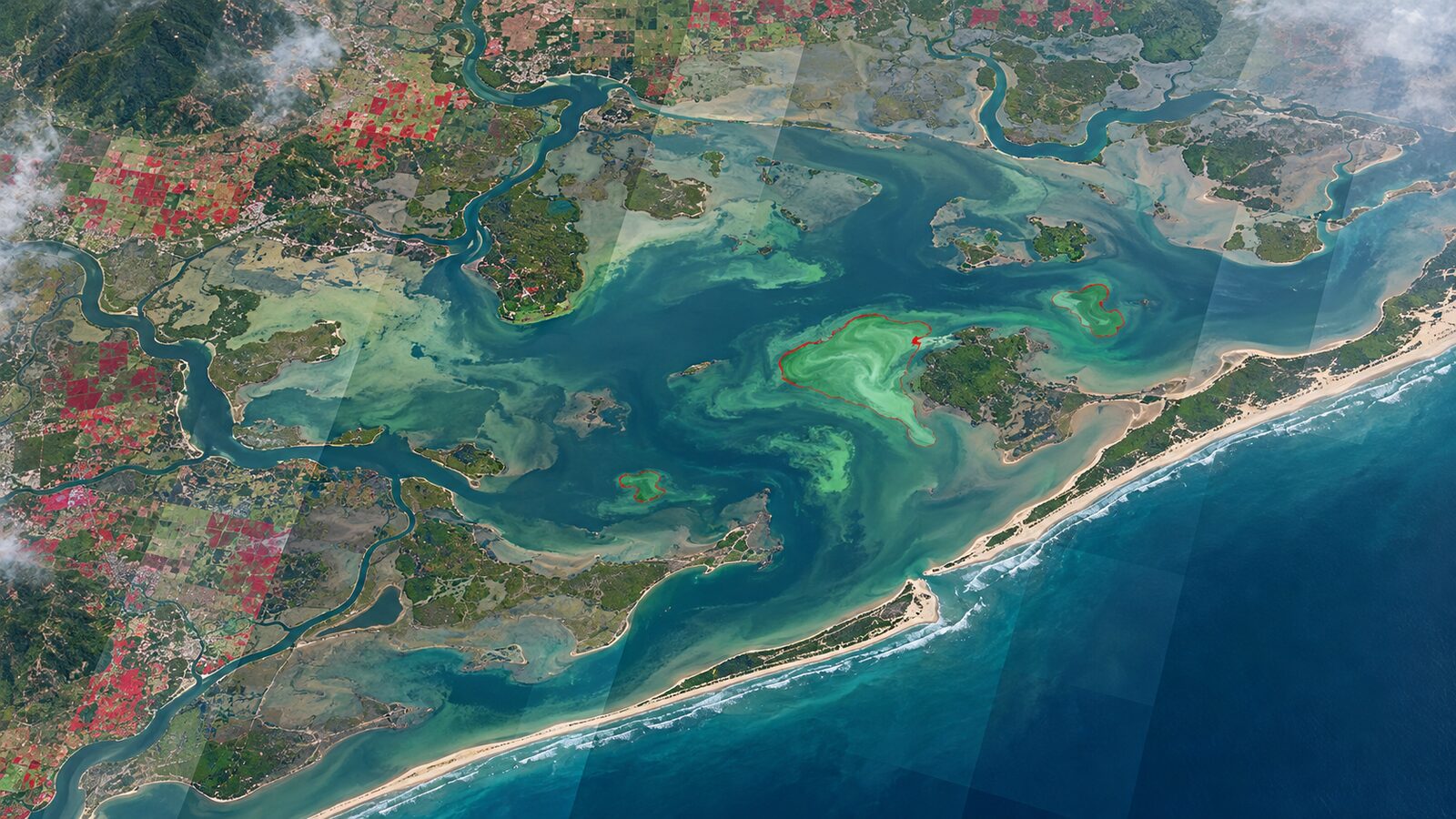
Chilika Lake is a strong Indian example for learning aquatic remote sensing because it is a large brackish lagoon on Odisha's east coast, internationally recognised as a Ramsar wetland since 1981, and ecologically shaped by fresh water, brackish water and marine exchange. The Chilika Development Authority notes that the lagoon supports a major fishing community and has faced pressures such as siltation, changing salinity, invasive fresh water species and weed growth, all of which make repeated water-quality screening valuable for students and analysts Chilika Development Authority.
For a first-pass bloom screen, Sentinel-2's red-edge bands are more interesting than a simple true-colour image. ESA describes Sentinel-2 as a multispectral mission with 13 MSI bands, a 290 km swath, and spatial resolutions of 10 m, 20 m and 60 m ESA Sentinel-2 facts and figures. The red-edge part of the spectrum is useful because chlorophyll can create a reflectance feature near the transition from red absorption to near-infrared reflectance. In SNAP's Sentinel-2 MCI documentation, the Maximum Chlorophyll Index is described as a baseline-height algorithm using B4 at 665 nm, B5 at 705 nm and B6 at 740 nm, with B5 as the peak band ESA SNAP S2 MCI documentation.
This post walks through a QGIS workflow for mapping MCI over Chilika. Treat it as a screening layer, not a laboratory chlorophyll measurement. It can help you identify suspicious patches for closer inspection, field sampling, or comparison with water-quality records.
Data to download
Use Sentinel-2 Level-2A Surface Reflectance, not Level-1C, when you want a practical index map from already atmospherically corrected reflectance. Copernicus documentation states that Level-2A provides atmospherically corrected Surface Reflectance from Level-1C products, and that Level-2A also includes Aerosol Optical Thickness, Water Vapour and Scene Classification layers Copernicus S2 products. For this workflow you need the 20 m folder because B5 and B6 are 20 m bands, and the Level-2A product places B1 to B7, B8A, B11, B12 and the SCL layer in the 20 m resolution folder Copernicus S2 products.
Download a cloud-light scene covering Chilika from Copernicus Browser. Keep the SAFE package structure intact until you locate the granule image files. In the 20 m folder, identify B04, B05, B06 and SCL. B04 is available at 10 m in Sentinel-2, but the Level-2A 20 m folder also provides the bands needed for this mixed-resolution calculation. The key idea is simple: run the whole MCI calculation on a common 20 m grid.
The formula used here follows the baseline-height idea in the SNAP MCI documentation. With the Sentinel-2 preset wavelengths listed there, the interpolation factor between 665 nm and 740 nm at 705 nm is:
(705 - 665) / (740 - 665) = 40 / 75 = 0.5333
So, for reflectance bands in QGIS Raster Calculator:
MCI = B05 - B04 - ((B06 - B04) * 0.5333)
If your files are stored as scaled integer reflectance rather than decimal reflectance, the index will be in scaled units too. For visual screening and relative comparison inside one scene, that is acceptable. For comparing dates, convert bands consistently and document the scale.
Worked example in QGIS
Start a new QGIS project and set the project CRS to the UTM zone used by the Sentinel-2 tile. Copernicus notes that Sentinel-2 Level-2A tiles are delivered in UTM/WGS84 cartographic geometry and have 110 km by 110 km tile surfaces, with overlap between neighbouring tiles Copernicus S2 products. Keeping the native UTM grid reduces unnecessary reprojection during raster calculation.
Load B04, B05, B06 and SCL from the Level-2A 20 m folder. Style B04, B05 and B06 quickly as single-band greyscale layers to check that the scene is not empty and that Chilika is inside the tile. Then add a polygon boundary or draw a temporary polygon around the lagoon so your outputs are clipped to the study area.
Open Processing Toolbox and use Clip Raster by Mask Layer for each band. Use the same lagoon polygon for all inputs. If QGIS asks about resolution or extent, keep the bands aligned to the same 20 m grid. This matters because the MCI expression compares one pixel with the corresponding pixels in two other bands.
Next, mask obvious non-water and cloud pixels. The Level-2A SCL layer was developed to distinguish cloudy pixels, clear pixels and water pixels for Level-2A products Copernicus S2 applications. A practical beginner mask is to keep only pixels classified as water, then inspect the result against a true-colour composite. Do not assume the SCL water class is perfect in a shallow lagoon with aquatic vegetation, suspended sediment and mixed shoreline pixels. Use it to reduce noise, then verify visually.
Run Raster Calculator with this expression, replacing layer names with your clipped rasters:
"B05_clip@1" - "B04_clip@1" - (("B06_clip@1" - "B04_clip@1") * 0.5333)
Save the output as a GeoTIFF named chilika_mci_20m.tif. Use Float32 if you are creating decimal reflectance outputs. QGIS documentation lists Raster calculator as a native raster analysis algorithm, and also documents raster statistics, zonal histogram and zonal statistics tools that are useful after the index is created QGIS raster analysis documentation.
Now style the MCI raster. Use a single-band pseudocolour ramp with low values in muted blue-grey and high values in yellow or red. Do not publish a dramatic threshold map immediately. First, open Layer Properties, read the histogram, and compare high-MCI patches with the original B05 and true-colour imagery. Bright sediment, sunglint, floating vegetation and very shallow water can all confuse visual interpretation.
For a simple reporting table, create three or four lagoon sectors as polygons, for example north, central, south and outer channel. Run Zonal statistics with the MCI raster as input and the sector polygons as zones. QGIS states that Zonal statistics calculates raster statistics for each overlapping polygon and can add fields such as count, mean, median, minimum, maximum and standard deviation to the vector layer QGIS raster analysis documentation. A mean MCI by sector gives a cleaner summary than pointing at one bright pixel.
How to interpret the map
Use MCI as a relative signal within the same date first. Areas with higher MCI are candidates for chlorophyll-rich water or surface bloom features, but they are not automatically harmful algal blooms. The SNAP documentation says MCI can indicate red tides or other aquatic vegetation, which is deliberately cautious wording ESA SNAP S2 MCI documentation. In Chilika, you should cross-check against wind, turbidity, salinity sector, field observations and reports from local monitoring programmes.
A useful student exercise is to compare one post-monsoon scene with one pre-monsoon scene, using the same mask, same formula and same colour breaks. Sentinel-2's five-day revisit from the two-satellite constellation at the equator is helpful for searching alternative dates when cloud or haze is a problem ESA Sentinel-2 facts and figures. However, revisit frequency does not guarantee a clean water observation. Always check cloud, haze, glint and shoreline mixing.
Common beginner mistake
The most common mistake is mixing 10 m and 20 m rasters casually. B04 is often used at 10 m, while B05 and B06 are red-edge bands at 20 m in the Sentinel-2 product structure Copernicus S2 products. If you calculate without controlling the grid, QGIS may resample behind the scenes, and your output can look sharper than its real information content.
Avoid this by using the 20 m versions of the bands where available, clipping all inputs with the same extent, and saving the final MCI at 20 m. If you later make a map layout, label it as a 20 m screening product. That one sentence prevents a recruiter, reviewer or field team from assuming it has 10 m detail.
Frequently asked questions
Can MCI measure chlorophyll concentration directly?
No, MCI is a screening index rather than a direct chlorophyll concentration measurement. It highlights a red-edge reflectance feature that may relate to chlorophyll-rich water, but field sampling or validated water-quality products are needed before reporting concentration values.
Why use B5 instead of only NDVI or NDWI?
B5 is useful because it sits in the red-edge region near 705 nm, where chlorophyll-related spectral behaviour can be more visible than in broad visible bands. NDWI is better for separating water, while MCI is aimed at detecting suspicious within-water patches.
Should I mask clouds with SCL before calculating MCI?
Yes, mask clouds and inspect the SCL result before trusting the MCI map. The SCL layer helps separate clouds, clear pixels and water in Level-2A products, but shallow lagoon edges and floating vegetation still need visual checking.
What map should I show in a portfolio?
Show the MCI raster, a true-colour comparison, and a small zonal statistics table by lagoon sector. That combination demonstrates remote-sensing judgement, QGIS processing skill and an understanding that index maps need validation rather than blind thresholding.
References
- ESA Sentinel-2 facts and figures
- Copernicus SentiWiki: Sentinel-2 products
- Copernicus SentiWiki: Sentinel-2 applications
- ESA SNAP Sentinel-2 MCI algorithm specification
- QGIS raster analysis documentation
- Chilika Development Authority: Visit Chilika
Cover image: AI-generated illustration (ChatGPT image generation), not satellite data.
Researched and drafted with AI assistance; sources are linked for verification.