Using Survey of India Open Series Maps in QGIS
A practical guide for Indian GIS learners on bringing Survey of India Open Series Maps into QGIS, choosing the right CRS, georeferencing scans, and checking accuracy before digitising.
Why Survey of India sheets still matter in GIS
Survey of India topographic maps are not old-fashioned background material. For many Indian GIS projects, especially in villages, hill districts, forest fringes and peri-urban planning zones, they are still useful reference layers for drainage, settlements, contours, tracks, administrative context and place names. The skill is not just finding a sheet. The professional skill is bringing it into QGIS with the correct coordinate reference system, checking whether it is already georeferenced, and avoiding digitising from a distorted image.
This post focuses on one practical workflow: using Survey of India Open Series Map material in QGIS as a controlled reference layer. It is written for students and early-career analysts who may have a PDF, TIFF or scanned map sheet and need to turn it into a useful GIS backdrop without quietly introducing positional error.
The context matters. Survey of India describes Open Series Maps, usually shortened to OSM, as civilian products prepared at 1:250,000, 1:50,000 and 1:25,000 scales. Its publication page states that these maps are based on WGS 84 datum and UTM projection. The Online Maps Portal also lists 1:50,000 Open Series Map products as full-sheet vector data, georeferenced colour raster TIFFs, free PDF topo sheets, and a 10 metre Digital Terrain Model derived from contours. Those details are not trivia. They affect what you can safely do with each download.
The core idea: a map image is not automatically GIS data
A map sheet can look geographically correct on screen and still be useless for measurement. A JPEG, PNG or scanned PDF is only an image until QGIS knows where its pixels belong on Earth. A GeoTIFF, on the other hand, may already contain spatial metadata, including its coordinate reference system and corner coordinates.
In QGIS, this distinction affects your first step. If the file opens in the right place when added through the Data Source Manager, inspect its Layer Properties before doing anything else. If it lands at a strange location, appears near coordinate zero, or overlays India at the wrong scale, treat it as an ungeoreferenced image. The QGIS Georeferencer is the correct tool for assigning ground control points and creating a rectified raster.
For Survey of India Open Series Maps, the CRS decision should not be guessed from memory. Survey of India states that OSM products are on WGS 84 datum and use UTM projection. QGIS supports EPSG-coded CRSs through its CRS selector. EPSG records define WGS 84 / UTM zone 43N as EPSG:32643, zone 44N as EPSG:32644, zone 45N as EPSG:32645, and zone 46N as EPSG:32646. Each is a metre-based projected CRS with easting and northing axes.
Worked example: georeference an Open Series sheet near Kolkata
Imagine you are preparing a base map for wetlands and peri-urban growth around the East Kolkata Wetlands. This is a strong training area because the city, fishponds, canals and agricultural plots form a clear urban-wetland mosaic in satellite imagery. A sheet centred in the Kolkata region falls in the 84 degrees east to 90 degrees east longitude band, which EPSG lists for WGS 84 / UTM zone 45N. In QGIS, the practical target CRS for such an Open Series Map sheet is therefore EPSG:32645.
Start by opening QGIS and setting the project CRS to EPSG:32645 from the CRS selector. Then add a reliable modern reference layer, such as a georeferenced satellite basemap or an official boundary layer you trust. This reference layer is not there to replace the Survey of India sheet. It is there to help you verify that your rectified sheet lands in the correct part of the world.
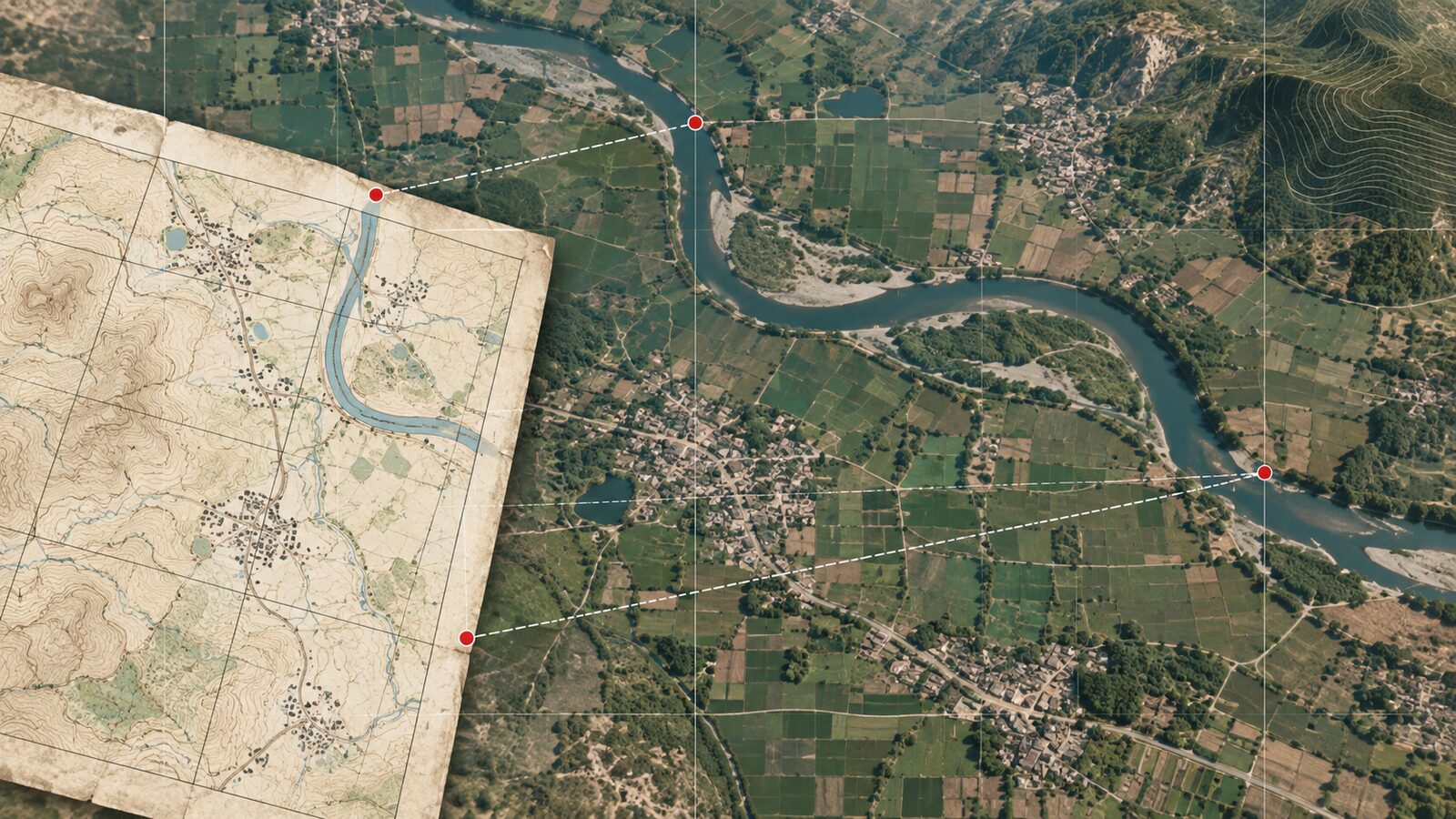
Open Layer > Georeferencer, following the current QGIS documentation path. Load the scanned map image or exported map page. If the sheet has printed graticule ticks, grid intersections or corner coordinates, use those first. Pick ground control points near the four corners and add more around the centre and edges. Avoid placing all control points along one road or one river. A good spread helps QGIS model rotation, scale and local distortion across the whole sheet.
For each control point, enter the known map coordinate. QGIS allows coordinates to be entered manually from the raster itself, or captured from an already georeferenced layer in the map canvas. If the sheet provides latitude and longitude ticks, enter those values with the correct CRS context. If the sheet provides UTM grid values, enter the easting and northing values in the correct UTM zone. For this Kolkata example, use EPSG:32645.
Choose a transformation method suitable for the scan quality. QGIS describes georeferencing as a process of selecting multiple points on the source layer, specifying their coordinates, and choosing a relevant transformation type. For a clean, north-up sheet with minor scanning distortion, a simple transformation may be enough. For a warped paper scan, a more flexible transformation can fit local distortion, but it can also hide bad control points. If one point has a very large residual, check it instead of hoping the transformation will absorb the error.
Set the output raster to GeoTIFF. GeoTIFF is convenient because the georeferencing information travels with the raster file rather than living only in a separate project. Enable loading into QGIS after completion. Run the georeferencing process, then compare the output against your reference layer. Roads, canals, railway lines, river bends and settlement edges should broadly line up. If they do not, resist the temptation to start digitising anyway.
A quick accuracy check before digitising
Before tracing features, make a small checkpoint table. Pick five to ten locations that were not used as control points. Road junctions, bridge crossings, canal intersections and stable building corners can work, provided they are visible on both the map and reference layer. Use the QGIS Measure tool to estimate offsets between the georeferenced sheet and the reference layer.
The aim is not to prove the map is perfect. A scanned topographic sheet, a satellite basemap and field GNSS points may all represent slightly different dates and sources. The aim is to understand whether the error is acceptable for your task. If you are making a district-level drainage context map, tens of metres may be acceptable. If you are marking parcel boundaries or utility alignments, a scanned topographic sheet is not enough.
Record the CRS, transformation type, number of ground control points and observed checkpoint offsets in your project notes. Recruiters and supervisors notice this kind of discipline. It shows that you are not merely producing a pretty map, you are managing spatial uncertainty.
Choosing the correct UTM zone in India
Use the longitude of your map sheet centre, not the longitude of your college, office or state capital. EPSG lists WGS 84 / UTM zone 43N for 72 degrees east to 78 degrees east, zone 44N for 78 degrees east to 84 degrees east, zone 45N for 84 degrees east to 90 degrees east, and zone 46N for 90 degrees east to 96 degrees east. This is why western, central, eastern and far-eastern Indian projects often need different EPSG codes even when they all use WGS 84 UTM.
If your project crosses a UTM zone boundary, decide how the output will be used. For local measurement within one sheet, the sheet’s own zone is usually sensible. For a state-wide web map, a geographic CRS or a national-scale projected CRS may be more practical, but that is a cartographic and analytical decision, not something to leave to default settings.
Common mistake: mixing layer CRS and project CRS
A very common beginner mistake is changing the project CRS and assuming that the raster itself has been fixed. In QGIS, the project CRS controls how layers are displayed together. It does not repair a layer whose CRS was assigned wrongly, and it does not georeference a plain image.
Here is a simple diagnostic. If a layer has correct spatial metadata, changing the project CRS should reproject its display while keeping it in the right real-world location relative to other correct layers. If a raster has no georeferencing, changing the project CRS merely changes how QGIS interprets the project canvas. The image still has no reliable relationship with the Earth.
Another related mistake is using Set Layer CRS to force a wrong layer into place. That command only tells QGIS how to interpret existing coordinates. It does not transform the data. If coordinates are already in EPSG:32645 and you label them as EPSG:4326, QGIS will not rescue the layer. It will treat metre values as degree values, and the result will be nonsense. Use proper reprojection tools when transforming data, and use the Georeferencer when assigning coordinates to an image.
A clean QGIS workflow checklist
First, identify the source. Is the file an official georeferenced TIFF, a downloaded PDF, a scan, or an image exported from a document? Do not skip this step, because each source type needs different treatment.
Second, read the coordinate information printed on the sheet or provided by the download portal. For Open Series Maps, keep the Survey of India rule in mind: WGS 84 datum and UTM projection. Then identify the correct UTM zone from the sheet longitude.
Third, inspect the raster after loading. In QGIS, open Layer Properties and check the CRS, extent and pixel size. If the layer has no CRS or appears in the wrong location, georeference it before analysis.
Fourth, use well-distributed control points. Four corner points may be enough for a neat test, but real scans usually benefit from additional points across the sheet. Delete obviously poor points instead of forcing a transformation to fit them.
Fifth, export a GeoTIFF and keep the original scan. The original is your archival input. The GeoTIFF is your working GIS layer. Store the ground control point file and notes with the project so the process is reproducible.
Finally, do a checkpoint comparison and state the limitation in your map layout or report. A small note such as Survey of India sheet georeferenced to WGS 84 / UTM zone 45N; visual checkpoint offsets inspected against recent imagery is far stronger than silence.
Where this helps in real Indian projects
This workflow is especially useful when you need historical or semi-historical context that modern satellite data cannot explain on its own. Drainage lines printed on a topographic sheet can help interpret wetland reclamation around Kolkata. Contours and settlement names can support field planning in Himalayan districts. Old tracks, tanks and canal networks can guide village-level reconnaissance before collecting GNSS points.
It is also useful for communicating with non-GIS teams. A Survey of India-style topographic background often feels familiar to planners, engineers and field staff. When it is correctly georeferenced, you can combine that familiarity with modern GIS layers: Sentinel imagery, cadastral sketches, GPS tracks, field photos and digitised points of interest.
The professional habit to build is simple: treat every map sheet as a spatial dataset with lineage, CRS, transformation choices and uncertainty. That mindset is what separates careful geospatial analysis from map decoration.
Frequently asked questions
Can I digitise directly from a scanned Survey of India map?
Yes, but only after georeferencing it and checking the result against independent reference points. A plain scan has no real-world coordinates. For serious work, export a georeferenced GeoTIFF, document the CRS and transformation, then digitise from that controlled raster.
Which CRS should I use for an Open Series Map in India?
Use WGS 84 with the correct UTM zone for the sheet area. Survey of India states that Open Series Maps use WGS 84 datum and UTM projection. In QGIS, common Indian zones include EPSG:32643, EPSG:32644, EPSG:32645 and EPSG:32646.
How many control points are enough for georeferencing?
Four well-placed points can define a basic transformation, but a practical scan usually needs more. Use points spread across corners, edges and the centre, then reserve separate checkpoints for validation. Quality and distribution matter more than simply increasing the count.
Is a georeferenced topographic sheet suitable for precise land boundaries?
No, not by itself. It is useful for context, reconnaissance and thematic mapping, but precise cadastral or engineering work needs authoritative boundary data and field survey control. Always match the data source to the decision being made.
References
- Survey of India, Publications
- Survey of India, Online Maps Portal overview
- QGIS Documentation, Georeferencer
- QGIS Documentation, Working with projections
- EPSG.io, WGS 84 / UTM zone 43N EPSG:32643
- EPSG.io, WGS 84 / UTM zone 44N EPSG:32644
- EPSG.io, WGS 84 / UTM zone 45N EPSG:32645
- EPSG.io, WGS 84 / UTM zone 46N EPSG:32646
Cover image: AI-generated illustration (ChatGPT image generation), not satellite data.
Researched and drafted with AI assistance; sources are linked for verification.