Map Irrigation Canals in QGIS with Bhuvan WMS
Create a quality-checked canal inventory for the Krishna Delta by using Bhuvan web maps as reference imagery and topology-aware digitising in QGIS.
Build a defensible canal inventory, not just a line drawing
An irrigation-canal map can answer practical questions that a satellite basemap alone cannot: where does a distributary branch, which reaches appear disconnected, and which field channels need a site visit? The catch is that manually traced lines can look convincing while being unusable for analysis. A tiny gap at a junction can break a connectivity query. A duplicated reach can inflate total length. A line traced at the wrong scale can falsely imply a precision the source does not support.
This walkthrough builds a small, reviewable canal inventory for a selected part of the Krishna Delta in Andhra Pradesh. It uses an ISRO/NRSC Bhuvan web service as a visual reference and QGIS editing tools to create a separate, editable line dataset. It is deliberately an inventory workflow, not a claim that every visible linear feature is an operational canal.
Bhuvan publishes thematic geospatial services through interoperable WMS and WMTS interfaces, and its guidance specifically describes consuming them in QGIS. The Bhuvan store also lists thematic land-use and land-cover services at more than one mapping scale. That makes Bhuvan a useful Indian context layer, but a web map remains a reference layer. Your own observations, department records and field verification decide what the final canal attributes mean. Bhuvan WMS guidance and the Bhuvan thematic data catalogue are the starting points for finding an appropriate service.
Define the question before opening QGIS
For this exercise, the question is: which visible irrigation channels form a connected, field-verifiable network within one chosen command-area block? That wording sets sensible limits. You are not mapping drains, village roads, field bunds or every wet strip visible in an image unless they can be identified and recorded separately.
Choose a manageable area first, such as the agricultural landscape around Avanigadda in the Krishna Delta. Add an area-of-interest polygon so that the task has a boundary. Keep a short evidence note for every important decision: the date you viewed the reference layer, its service name, the map scale at which you digitised, and whether a reach was confirmed in the field, from a reliable local source, or only interpreted visually.
Create a new GeoPackage rather than scattering temporary shapefiles around a project folder. Add one line layer named canals and give it fields such as:
canal_id, a stable identifier such asKD-001name, if knownclass, for example main, distributary, minor, field_channel or uncertainevidence, for example field, official_record or visualstatus, for example unknown, active, dry or obstructedchecked_on, the date of your latest reviewnotes, for uncertainty, culverts, gates or follow-up work
These fields make uncertainty visible instead of hiding it in the geometry. They also let a recruiter or colleague understand what your map can and cannot support.
Add Bhuvan as a reference layer
In QGIS, open Layer > Add Layer > Add WMS/WMTS Layer. Create a new connection with a Bhuvan service URL taken from its current documentation or catalogue, then connect and inspect the available layers. NRSC's guide describes this same connection route for loading Bhuvan services in QGIS. Select a layer that helps you distinguish the wider agricultural and settlement setting, then add it to the canvas. NRSC Bhuvan WMS instructions
Do not assume that a layer name guarantees fitness for canal tracing. Pan around the intended mapping block and inspect whether channels, embankments, roads and field boundaries can be visually separated. If they cannot, use the Bhuvan layer only for context and plan another authorised reference source or a field visit. Record that limitation in your project notes.
Set the project to a suitable projected CRS for your area before calculating lengths or using distance-based tolerances. The important discipline is consistency: keep the editable canal layer and any measurement work in a CRS whose map units are meaningful for the task. Do not digitise in one coordinate reference system, calculate length in another without checking the result, then report a false level of confidence.
Configure topology before digitising
Topology describes spatial relationships between features. For a canal network, the key relationship is connectedness: a branch should meet its parent line where water could actually pass, unless you deliberately model a structure or gap. QGIS explains that topology helps detect and correct digitising errors and that it matters for network-based analysis. QGIS topology guide
Open the Snapping settings and configure the canals layer to snap to both vertices and segments. Use a small, tested tolerance. First make a short trial junction, zoom in, move a vertex, and inspect whether it lands on the intended feature. QGIS notes that snapping distance controls the search for a nearby vertex or segment; a tolerance that is too large can snap to the wrong feature in dense data. QGIS topology guide
For this task, turn on topological editing if you expect to adjust shared junctions repeatedly. If you are digitising adjacent polygon command areas later, QGIS also offers an avoid-overlap option, but use it cautiously. QGIS warns that it can create unexpected geometries when it remains enabled beyond the intended edit. QGIS editing documentation
Worked example: trace one distributary and its branches
Start with one obvious distributary instead of attempting the entire delta. The aim is to create a repeatable pattern that you can expand after review.
-
Zoom to a scale where the channel path is distinguishable but you can still see its relationship to fields, roads and settlements. Do not chase every bend at extreme zoom. A smoother, evidence-led centreline is usually more honest than a dense string of clicks following image artefacts.
-
Toggle editing on the
canalslayer and select the line capture tool. Begin at a clearly interpretable upstream junction. Click along the centre of the channel, placing vertices only when direction changes materially or when a feature such as a gate, bridge or bifurcation needs to be located later. -
At the downstream end, snap to the next junction. Finish the line and populate its attributes immediately. For example, give the first line
KD-001, classify it asdistributary, set evidence tovisual, and write a note such as “continuous feature visible to road crossing, field confirmation pending”. -
Digitise a side branch as a new feature, beginning by snapping exactly onto
KD-001. At a true junction, do not merely draw the branch visually close to the parent line. Zoom in and confirm the endpoint has snapped. This is the small habit that makes later connectivity checks possible. -
Where the channel disappears under trees, through a built-up section or at a crossing, stop treating the interpretation as fact. If continuity is plausible but unproven, split the line and mark the uncertain portion in
notesor classify it asuncertain. A gap that is documented is better than a false connection. -
If you need to follow an existing boundary while digitising, QGIS provides automatic tracing. Its documentation says tracing depends on snapping and on connectable underlying edges, and it can otherwise create a straight line between points. Use it as an aid, then inspect the resulting geometry rather than trusting it blindly. QGIS editing documentation
-
Save edits frequently and keep the Bhuvan service layer separate from your GeoPackage output. The resulting GeoPackage is your interpretation and should carry your attribution, uncertainty and review trail.
After tracing several reaches, symbolise class with distinct line styles and draw evidence using line opacity or labels. A reviewer should be able to see which reaches are confirmed and which are preliminary without opening the attribute table.
Check geometry before calculating anything
Run QGIS's geometry checking tools before producing lengths, reach counts or connectivity summaries. Look for duplicate lines, self-intersections, unintentional multipart features, dangling ends and short fragments. Not every dangling end is an error: it may be a terminal field channel, an intake, a mapped boundary limit or an uncertain break. The task is to distinguish those meaningful endings from accidental gaps.
Then perform a visual junction audit. Select each branching location, zoom in, and ask three questions: do the endpoints touch, does the direction make sense, and is there evidence for a hydraulic connection? A railway, road or embankment crossing may contain a culvert, a siphon or no connection at all. The map alone may not resolve that question.
Create a review_flag field if the inventory will be shared. Values such as check_connection, check_class and check_status turn quality control into a manageable fieldwork list. Export a simple map showing only flagged reaches, then take it to the field with a printed overview or an offline mobile map.
The beginner mistake that breaks the network
The common mistake is drawing lines that nearly meet and assuming the network is connected. On screen, a one-pixel gap can be invisible. In analysis, it becomes a disconnected branch, an incorrect route or a misleading upstream count.
Avoid it by enabling snapping before the first line is drawn, working close enough to inspect every junction, and carrying out a dangling-end review before any analysis. Do not solve every dangling end by force-connecting it. If a connection is uncertain, preserve that uncertainty in the geometry and attributes until field evidence settles it.
A second frequent mistake is treating the reference layer as ground truth. Bhuvan's services are valuable contextual resources, but visual interpretation cannot establish operational status, ownership, flow direction or the condition of a structure. Phrase results carefully: “mapped visible canal alignments” is defensible; “active irrigation network” requires stronger evidence.
Turn the inventory into a portfolio-quality output
A strong deliverable contains three things: the GeoPackage, a clear map layout, and a short methods note. The layout should show the area boundary, canal classes, uncertain segments, major landmarks and a concise legend. The methods note should name the Bhuvan service used, the date accessed, the digitising rules, the CRS used for measurement, the quality checks completed and the known limitations.
This combination demonstrates more than button knowledge. It shows that you can connect an Indian public geospatial service to an auditable QGIS workflow, create usable vector data, and communicate uncertainty responsibly. Those habits transfer directly to drainage, road, utility, stream and field-boundary inventories.
Frequently asked questions
Can I edit a Bhuvan WMS layer directly?
No, treat a Bhuvan WMS layer as a reference display and digitise your own features into a separate editable dataset. Bhuvan describes these services as interoperable WMS or WMTS resources for consumption in compatible clients such as QGIS, so preserve source attribution in your project notes.
Should every visible field boundary be mapped as a canal?
No, only map a feature as a canal when your project definition and available evidence support that interpretation. Field boundaries, drains, tracks and shadows can resemble channels, so use an uncertain class or a review flag instead of forcing an unsupported classification.
Why do snapped canal lines still fail connectivity checks?
They can fail because an endpoint snapped to the wrong nearby segment, a line was split unintentionally, or a junction was only visually close. Inspect the node at a large display scale and review dangling ends, duplicate lines and junction geometry before running network analysis.
Can this workflow prove that a canal is currently carrying water?
No, it cannot prove current flow from the mapped alignment alone. Record observed status separately, verify key reaches in the field or with reliable operational records, and state the observation date because a channel's condition can change after maintenance, rainfall or seasonal operations.
References
- NRSC Bhuvan, How to use WMS services
- NRSC Bhuvan, Thematic data catalogue
- QGIS Documentation, Topology
- QGIS Documentation, Editing geometry and attributes
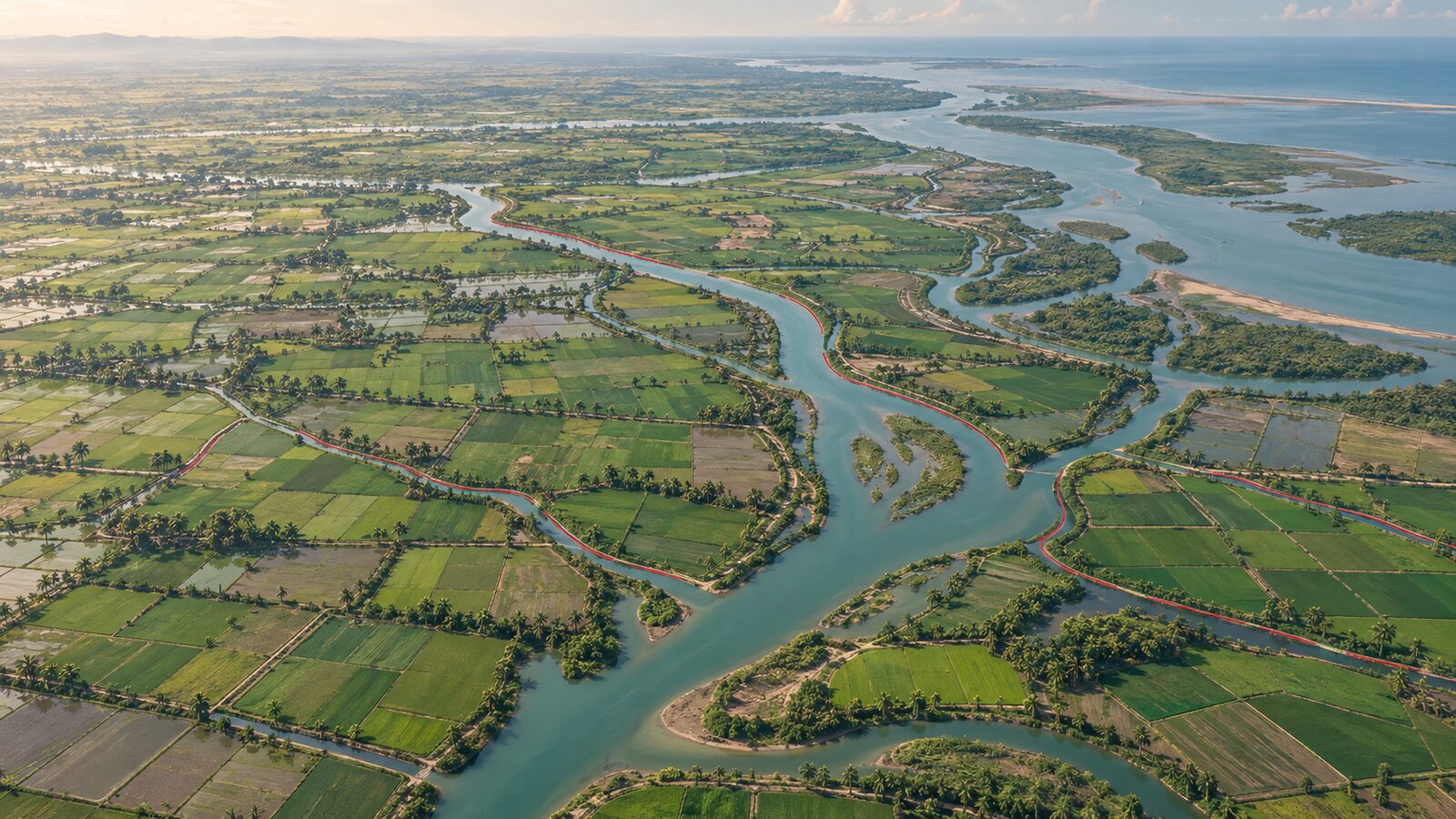
Cover image: AI-generated illustration (ChatGPT image generation), not satellite data.
Researched and drafted with AI assistance; sources are linked for verification.